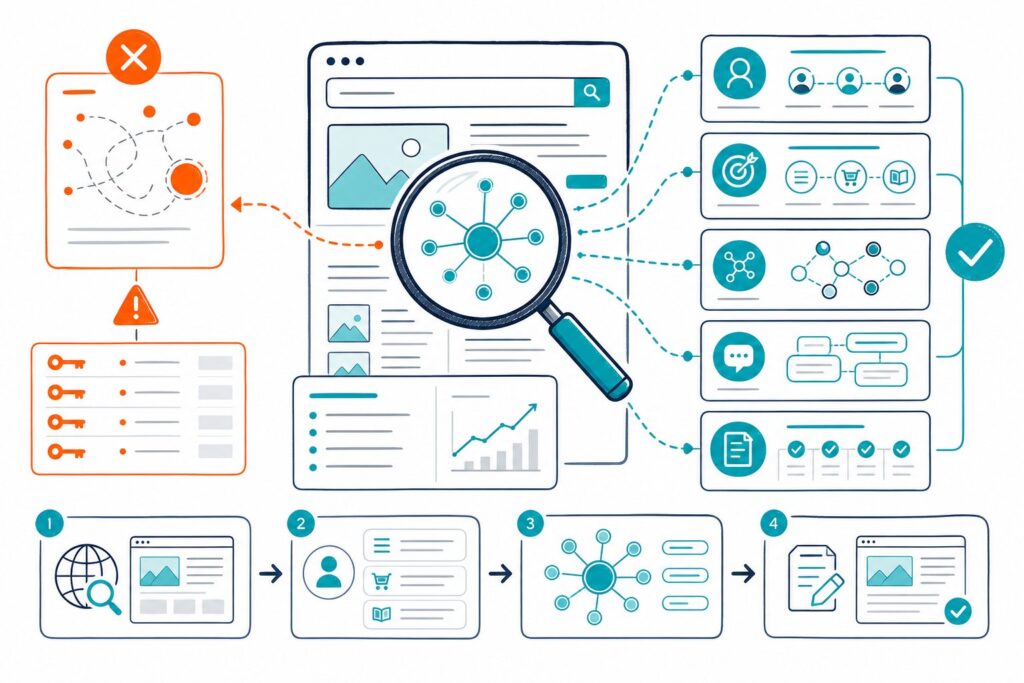
If you’re hunting for SEO Minion alternatives for a live URL, don’t just grab the most popular extension. Pick the tool that fits the job in front of you.
Maybe you need to poke around the rendered DOM on a staging site. Or you’re tracing a redirect chain, checking indexability, sizing up a competitor’s headings, or measuring if your last tweak actually boosted clicks and CTR.
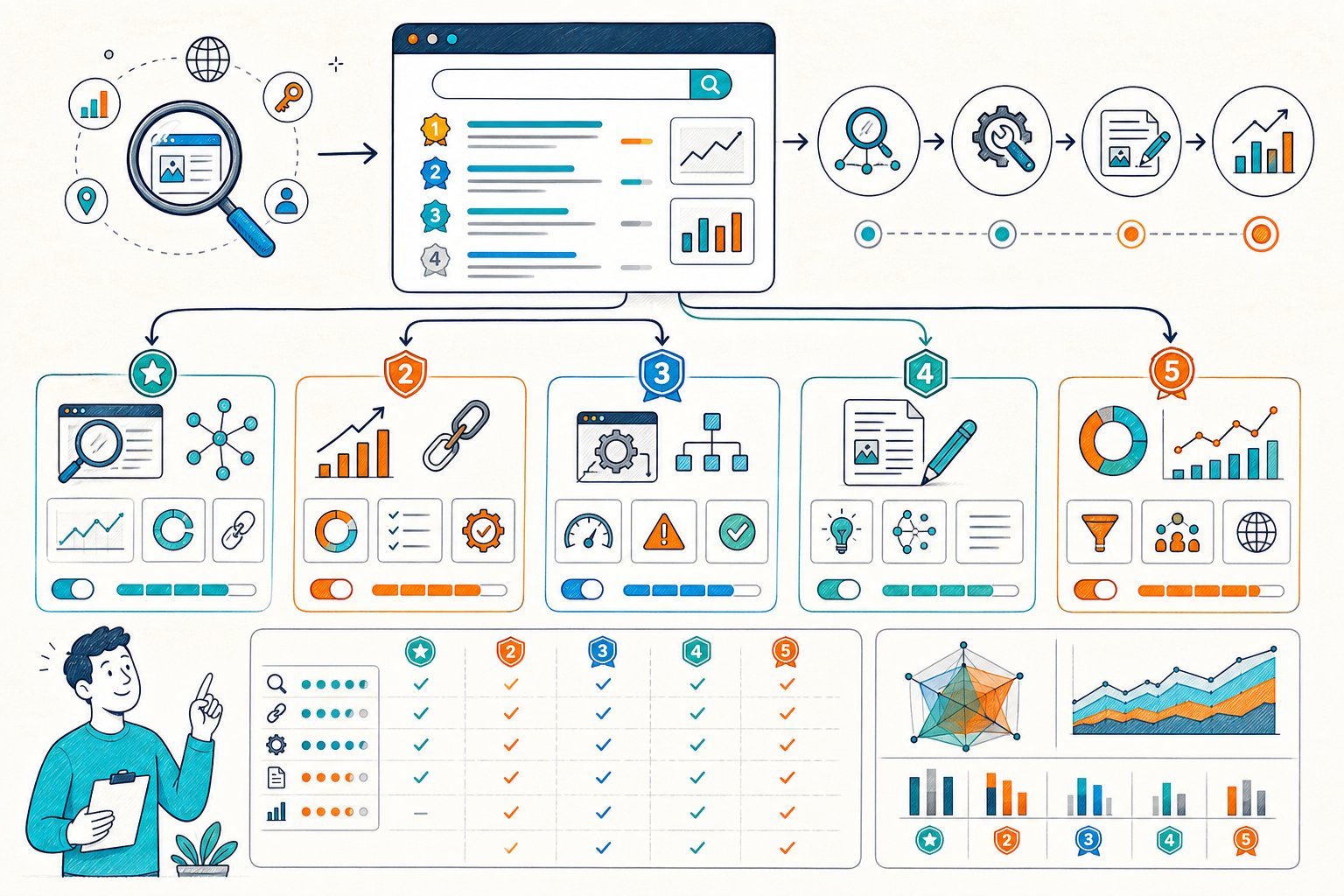
The best workflow? Mix a live-page inspector with crawl data, performance info, and Search Console numbers. Each tool below shines at a different step, and each one gives you useful clues, not magic Google ranking secrets.
1) Check Page SEO
Check Page SEO is a powerhouse when you need to audit the URL right in front of you. That means CMS previews, staging, or even pages behind a login.
You can check rendered headings, metadata, canonicals, robots tags, links, images, schema, keywords, and how the content is built. No need to copy-paste into some separate crawler.
It fits early in your process, right after you’ve picked your target query and before you start rewriting page copy or templates. You can even line up your page against a competitor and see your Search Console clicks, impressions, CTR, and top queries side by side with the audit.
Use the score as a guide, not gospel. The real gold is catching missing H1s, skimpy heading sections, canonical messes, intent mismatches, and indexability snags.
The core audits are free. If you want reports, competitor comparisons, AI prompts, or local data, you’ll need credits. Grab the Chrome extension here if your work starts with a live URL.
2) Detailed SEO Extension
Need a quick technical snapshot of a public page? Detailed SEO Extension has your back.
It shows metadata, headings, canonicals, robots tags, structured data, links, images, and other key signals, all in a tidy browser panel. Super handy when you’re checking a competitor or validating a new template.
You can spot a missing canonical, duplicate H1, blocked page, or weird heading pattern in seconds. No need to fire up a full crawler.
It doesn’t dig deep into workflow. It’s great for inspection, but it won’t crawl your whole site for duplicate tags, orphaned pages, sitemap holes, or redirect chains.
It also can’t show your own Search Console data or track historical performance. On the plus side, it’s free, so it makes a solid backup checker for a second opinion.
3) SEO Meta In 1 Click
SEO Meta In 1 Click is built for lightning-fast metadata and heading checks.
Just open a page, and you can see the title tag, meta description, H1 through H6, image info, and basic tech tags in a flash. It’s perfect for your first-pass QA.
It’s especially useful when you’re reviewing writer drafts or double-checking that a release didn’t mess up your title, description, canonical, or heading structure.
To be fair, it’s a viewer, not a full audit machine. You won’t get competitor gap analysis, crawl-level reporting, or proof that your new title actually improved search.
Use it for quick checks, then see the real impact in Search Console. Most folks use it to peek at metadata without digging into the page source, which is honestly its sweet spot for daily QA.
4) SEOquake
SEOquake is still a go-to for fast page metrics, SERP overlays, keyword density, and exportable comparison data.
You can review a page’s on-page signals while you scan search results for your target query. It’s clutch for triaging competitors.
You can check several ranking pages, jot down title and heading trends, see indexed-page counts, and check link metrics. Then you can pick one real competitor for a deeper look.
Take third-party authority and density numbers with a grain of salt. High numbers don’t always explain why someone ranks, and raw keyword counts can be padded by navigation or footer junk.
SEOquake is free for the basics, though some data needs Semrush access. Use it to spot opportunities, not as a stamp of approval before you make changes.
5) MozBar
MozBar is your buddy for quick link and authority context as you browse SERPs or competitor sites.
You get Page Authority, Domain Authority, link metrics, and page elements, all without leaving Chrome.
It’s great for picking outreach targets, checking competitor link profiles, or seeing if a ranking page sits on a heavyweight domain. It helps you figure out if you’re missing links or just content.
Remember, Domain Authority is Moz’s metric, not a Google ranking factor. Don’t treat it as a pass/fail for page refreshes. Sometimes, a lower-authority site wins just by nailing search intent or matching the right entity and location.
MozBar has a free version, with more data if you pay for Moz Pro. Use it when reviewing authority and SERPs, not as your final measurement tool.
6) Ahrefs SEO Toolbar
Ahrefs SEO Toolbar is a solid pick when you want page-level SEO data plus quick backlink and SERP context.
You can pull up titles, headings, canonicals, word count, links, schema, redirect details, and Ahrefs metrics in a snap. It’s great when your audit hunch involves authority, internal linking, or content depth.
Maybe you spot a competitor with similar headings but way more relevant backlinks. That’s a clue.
The catch? The best metrics need an Ahrefs account or paid plan, and backlink numbers are still estimates. They’re good for comparing, not for claiming exact link power.
Use the toolbar after you check the live URL. It’ll help you decide if your next move is more content, better internal links, a tech fix, or a full-on authority push.
7) Link Redirect Trace
Link Redirect Trace is your specialist for redirects and header checks.
You can see HTTP status codes, redirect hops, canonicals, robots tags, and indexability for the page you’re on. It’s a lifesaver before and after migrations, URL cleanups, HTTPS switches, or canonical updates.
Redirect mistakes can really mess things up, breaking internal links, crawl paths, or even your hard-won authority.
This tool is laser-focused. It won’t tell you if your page answers the query, covers all subtopics, or if users like what they see.
It’s best as a technical checker. Keep redirect chains short, avoid conflicting canonicals and redirects, and always test both the old and new URLs before going live.
8) Screaming Frog SEO Spider
Screaming Frog SEO Spider is the crawler in this lineup.
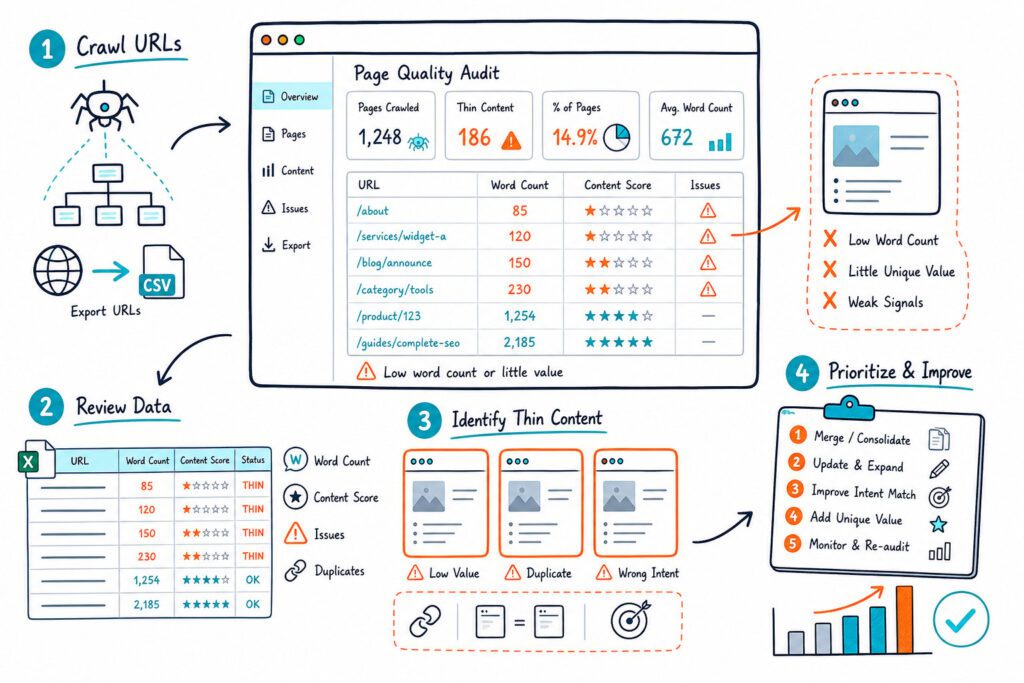
You can crawl a site or a set of URLs to find duplicate titles, missing metadata, broken internal links, redirect chains, canonical conflicts, non-indexable pages, thin content, and sitemap issues.
It’s perfect after a live-page audit uncovers a template problem. If one product page is missing a canonical, crawl the whole folder to see if it’s a one-off or a pattern.
It can struggle with dynamic or logged-in content. You can set up JavaScript rendering and authentication, but for a single logged-in URL, browser inspection is usually faster.
The free version has a crawl limit, and big sites need a paid license. Use it to find patterns, then check your fixes on the live page.
9) Google Lighthouse
Google Lighthouse is your friend when you’re worried about performance, accessibility, best practices, or technical rendering.
Run it in Chrome DevTools to spot render-blocking resources, bloated images, too much JavaScript, layout shift, or missing accessibility tags.
Use it before engineering changes and again after you ship. A page can have perfect metadata and still drive users nuts if it loads slow or jumps around on mobile.
Lighthouse tests a simulated environment, not the real world. Real users have different devices, networks, and cache situations. So, pair Lighthouse with real field data from Chrome UX Report or Search Console Core Web Vitals when you can.
It’s free. Focus on fixes that actually help users and major templates, not on chasing tiny score bumps.
10) Google Search Console
Google Search Console is your measurement HQ.
Use it to set your baseline before you touch content, metadata, internal links, canonicals, or templates. The Performance report shows clicks, impressions, CTR, and average position by page, query, country, device, and search appearance.
Filter right down to your URL, then spot high-impression queries with low CTR or ones hovering near better rankings.
It can’t tell you exactly why performance changed. You’ll need to figure out if it was headings, entity coverage, links, speed, seasonality, or just a competitor leapfrogging you.
It’s free if your site is verified. Use it at the start and end of every audit. It turns your work into a real test.
How To Choose An SEO Minion Alternative
Start With The Specific URL And Search Intent
Start with one URL, one main query, and a clear user goal. If it’s a landing page, focus on conversion proof, features, trust, and a clear next step.
If it’s an info guide, make sure it answers the question, covers subtopics, includes relevant entities, and is easy to read.
Pick a browser extension first if you need to see what users and Googlebot actually get on the live page. Go for a crawler if you want to know if the same issue pops up on lots of URLs.
Separate Rendered-Page Checks From Crawl-Level Checks
Rendered-page checks show you the live DOM, headings, loaded canonicals, JavaScript output, images, schema, and indexability. This is key on modern sites where source HTML and rendered content can be worlds apart.
Crawl-level checks spot patterns: duplicate templates, broken links, sitemap issues, chains, loops, and wasted indexation. You’ll want both views if a page-level problem might be sitewide.
Prioritize By Impact, Implementation Risk, And Testability
Fix what’s most likely to move the needle for intent or crawlability. A noindex tag, wrong canonical, broken link, missing product info, or weak title is usually easier to test than rewriting a whole content hub.
Ask yourself:
- Impact: Will this actually boost relevance, accessibility, crawlability, or CTR?
- Risk: Could this tank rankings, mess up tracking, break conversions, or cause canonical chaos?
- Testability: Can you measure before and after with a stable URL and queries?
Confirm Results With Equivalent Search Console Periods
Compare apples to apples, using the same days of the week, same length of time. If your “after” period is Tuesday to Sunday, make sure your “before” is too.
Don’t judge a change after just two days, especially if traffic is low. Mark down the deployment date, what you changed, which templates it hit, and what you expected.
Then check clicks, impressions, CTR, position, and query mix, not just one shiny metric.
A Practical Live-URL Audit Workflow
Set The Search Console Baseline
Filter Search Console to your target page and look at the last 28 to 90 days, depending on how much traffic you get.
Export your top queries, clicks, impressions, CTR, position, device, and country splits. Write a quick hypothesis, like: “The page gets impressions for enterprise SEO audit queries, but its title and H1 make it sound generic. Tweaking intent signals might boost CTR and relevance.”
Inspect Relevance, Structure, And Indexability
Open your live URL and check title tags, meta descriptions, H1s, H2s, visible copy, internal links, canonicals, robots tags, schema, images, and how the page actually renders.
Make sure the main answer appears early, and every big subheading has enough meaty content. Then check HTTP status, redirects, mobile layout, and Core Web Vitals.
Don’t change five random things at once if you want to know what actually worked.
Compare One Relevant Competitor
Pick one competitor that matches your query, page type, market, and audience.
Compare their section coverage, entities, media, trust signals, internal links, copy depth, pricing or features, and calls to action. No need to copy their words or pad your page to match their word count.
Figure out what user needs they’re meeting better, then add your own spin that fits your brand and audience.
Deploy, Annotate, And Measure The Change
Start by rolling out the smallest batch of changes you can get away with. Mark the date in your release log, jot down your hypothesis, and snap some before-and-after screenshots for proof.
Once you hit publish, swing by the live URL and make sure everything looks right. Double-check the title, canonical, robots tag, structured data, redirect behavior, and what’s actually showing up on the page.
After a bit of time (and a good chunk of data in Search Console), compare your results. If things look good, keep the changes. If not, don’t be shy about tweaking or rolling them back.