If you’re on the hunt for Sitechecker Chrome Extension alternatives for a specific live URL, you’ll want to pick your tools based on the job at hand.
Sometimes you just need a quick peek at a title tag, but live-page work can get way messier. Think rendered DOM review, indexability checks, redirect validation, competitor context, and a Search Console baseline, plus the fun stuff.

To be fair, one extension rarely does it all. You’ll probably want a browser auditor for the active page, a crawler for site-wide checks, performance tools for Core Web Vitals, and good ol’ Google Search Console to see if your tweaks actually move the needle across clicks, impressions, CTR, the works.
1) Check Page SEO
Check Page SEO shines when you need to audit the URL you’ve got open in Chrome.
It’s handy for staging pages, CMS previews, or anything hiding behind a login. You can peek at rendered headings, metadata, links, images, canonicals, robots directives, schema, content depth, and a bunch of technical signals, with no copy-pasting URLs into some other tool.
It fits nicely into your early workflow, once you’ve got the page’s query and Search Console baseline sorted.
You can even compare your page against a competitor or review your Search Console data right alongside the audit. The score it spits out is just a prioritization tool, not some magic Google ranking number.
Really, treat things like noindex tags, missing canonicals, broken links, weak H1s, or thin content as your fix-first list.
You can download the Check Page SEO Chrome extension for free. If you want more, grab credits for reports, competitor checks, AI prompts, and local data.
2) SEOTesting
SEOTesting is perfect for the measurement phase, especially if you’re messing with title tags, internal links, content tweaks, or chasing higher CTR.
You log the date you made a change, then compare Google Search Console performance before and after. Simple, but effective.
Use it after your live-page audit gives you a testable idea. Maybe you want to see if a new title grabs more clicks, or if adding an H2 actually helps cover a secondary intent.
It’s not a Chrome page auditor, though. You’ll still need another tool or crawler to see what’s actually on the page right now.
Heads up: if the page barely gets any traffic, short test windows can mess with your results. Always compare equal time periods and matching days of the week to keep things fair.
3) Detailed SEO Extension
The Detailed SEO Extension is your go-to for a quick, clean rundown of on-page basics.
Titles, meta descriptions, headings, canonicals, robots tags, structured data, images, links, and page text. It is all right there, no fuss.
It’s great for content QA or dev acceptance testing. Just open your staging or production URL, check the H1s and headings, validate the canonical, and make sure what you see matches the brief.
But don’t expect deep workflow magic. You won’t get Search Console integration, competitor-gap analysis, or fancy reporting.
Use it for fast validation, especially after you’ve pushed a change. Then, double-check results in Search Console, because a clean audit doesn’t guarantee a ranking jump.
4) Screaming Frog SEO Spider
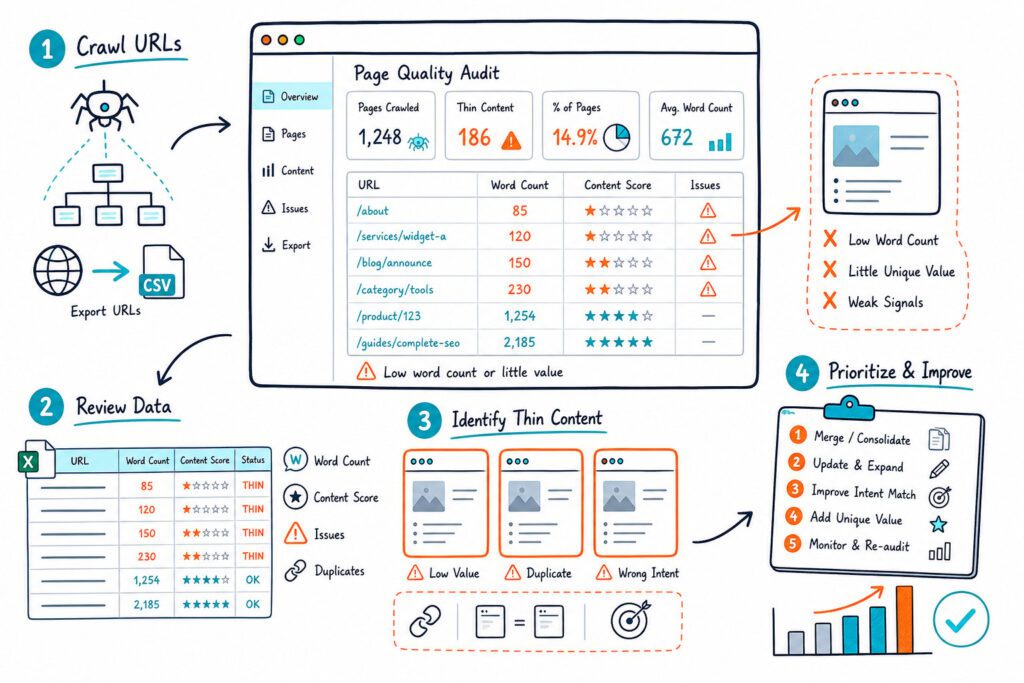
Screaming Frog SEO Spider is the heavy hitter when one problem might be lurking across hundreds or thousands of URLs.
You can crawl titles, canonicals, redirects, status codes, hreflang, internal links, duplicate content, JavaScript-rendered pages, and XML sitemaps.
It’s perfect when you spot a pattern, such as a missing canonical or duplicate H1 on a category page. Crawl the whole template set before calling it a one-off.
But remember, it’s desktop software, not a quick browser extension. Authenticated crawling and JavaScript rendering need some setup, and huge crawls can eat up resources.
If you’ve got one URL to check, start in your browser. For templates, migrations, or indexation risks, fire up Screaming Frog. It’s a classic for a reason, and still a top pick in Sitechecker alternative comparisons.
5) SEO Minion
SEO Minion is your buddy for lightweight page checks and a bit of SERP digging.
You can review on-page SEO elements, scan headings, highlight broken links, preview SERPs, and check hreflang tags.
It’s practical when you’re editing content or making sure international tags are in place on a live URL. The broken-link checker is especially handy before you launch a big resource page.
Just know it won’t replace a crawler, performance tool, or Search Console workflow. It’ll tell you if a link’s broken, but not if fixing it actually boosted traffic or made users happier.
Use SEO Minion for quick checks, then pair it with Search Console to decide which pages are worth your sweat.
6) Ahrefs SEO Toolbar
Ahrefs SEO Toolbar is a lifesaver if your live-page audit needs some link and SERP context.
You can peek at page-level SEO data while browsing search results and competitor pages. Super useful for spotting if a content gap is worth chasing.
Use it when picking competitors. You want a page that ranks for the same query, serves the same intent, and talks to the same crowd. Comparing apples to oranges? That’ll just lead you astray.
Heads up: some Ahrefs metrics and reports are locked behind subscriptions. And remember, authority metrics are just guides, not Google gospel.
It’s best for checking backlink profiles, referring domains, and who else is in the race. Not so great for validating what’s on a logged-in staging page.
7) Semrush SEOquake
Semrush SEOquake is a handy browser sidekick for a quick scan of on-page elements and visible SERP metrics.
You can check titles, descriptions, headings, link counts, canonicals, and some domain indicators, all while cruising through search results.
It’s great for triaging competitors straight from the SERP. You’ll spot which ranking URLs deserve a deeper look for content, intent, or technical comparison.
Just don’t let the metrics distract you from the page’s real purpose. A high-authority URL can still be a lousy target if it doesn’t match your intent, product, or audience.
A lot of Semrush data is gated by plan level. Use SEOquake to narrow your shortlist, then dig into headings, internal links, and conversion elements yourself.
8) MozBar
MozBar is perfect for quick authority and link checks as you cruise SERPs or competitor pages.
It gives you page and domain metrics, offering rough way to size up the competition for a keyword.
Pull it out early in your research. If the top results are all big brands with monster link profiles, you might need to niche down or beef up your own coverage.
But don’t get too hung up on the numbers. Domain Authority and Page Authority are Moz’s inventions, not Google’s rules. They’re helpful guides, not hard lines.
Pair MozBar with a close look at content. Sometimes a lower-authority page nails the query and gives you great ideas for headings, FAQs, or media.
9) Redirect Path
Redirect Path is your go-to when you suspect a URL is losing value or causing crawl headaches with redirects.
It shows HTTP status codes, redirect chains, meta refreshes, and client-side redirects, right in your browser.
Use it before and after migrations, URL changes, canonical tweaks, HTTPS moves, or cleaning up parameters. Always check the requested URL, the final URL, canonical target, internal links, and sitemap entry together.
It’s a one-path-at-a-time tool, though. If you need to uncover redirect chains across a whole site, break out a crawler.
Redirect changes can be risky. Test on staging if you can, keep a rollback plan, and watch indexing and Search Console clicks after you hit go.
10) Google Lighthouse
Google Lighthouse is your main tool for diagnosing page performance, accessibility, and front-end tech issues.
Run it in Chrome DevTools to get lab data on Largest Contentful Paint, Interaction to Next Paint, Cumulative Layout Shift, blocking resources, image size, and JavaScript bloat.
Use it after you’ve checked relevance and indexability. A page might have perfect metadata and killer content, but if it loads like molasses or jumps around on mobile, users will bounce.
Just remember, Lighthouse gives you lab results, not real-world user data. For the full picture, check Google Lighthouse documentation and then peek at your field data.
Prioritize fixes that users actually notice, such as huge hero images, blocking scripts, layout shifts, or slow mobile buttons.
How To Choose A Sitechecker Chrome Extension Alternative
Match The Tool To The Page-Level Workflow
Go for a browser extension when you need to poke around the open URL. This is especially handy for CMS drafts, staging, or logged-in pages.
Reach for a crawler if the same issue might be lurking in a template, folder, or your whole domain.
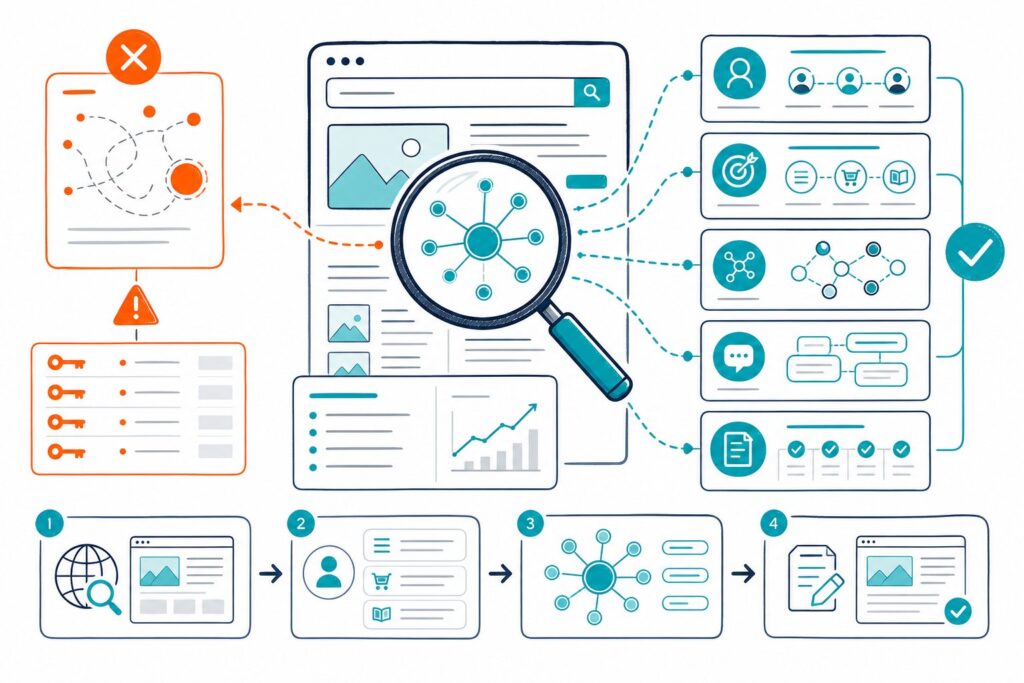
A solid workflow moves from query baseline to page diagnosis, competitor comparison, implementation, and measurement. Tools that just show metadata are fine, but that’s only one piece of the puzzle.
Confirm Rendered-Page And Authentication Coverage
Double-check if your tool reads the rendered DOM, not just raw HTML. JavaScript content, lazy-loaded images, client-side canonicals, and injected schema can totally change what’s actually on the page.
If your key URLs hide behind a login, test in the real browser session. Cloud crawlers usually can’t get into private previews, personalized pages, or staging servers without some extra elbow grease.
Separate Observable Signals From Ranking Assumptions
You can see titles, headings, internal links, schema, indexability, page speed, and Search Console performance.
But don’t fall for extension scores, keyword densities, or authority numbers as ranking formulas. Use scores to sort your work, then double-check with the actual HTML, HTTP response, rendered output, and Search Console data.
Assess Pricing, Export, And Team Handoff Needs
Free extensions are often plenty for quick checks. Paid tiers matter if you want automated crawls, history, PDF exports, white-label reports, scheduled monitoring, or team workflows.
For agencies and devs, the best tool is the one that turns a finding into a clear ticket: affected URL, evidence, fix needed, priority, and a post-release check.
A Practical Live-URL Audit And Validation Workflow
Set The Search Console Baseline
Before you touch the page, open Google Search Console.
Jot down clicks, impressions, CTR, average position, ranking queries, date range, and any country or device filters.
Focus on queries with enough impressions to make a test meaningful.
A page hovering at the bottom of page one for a good query is usually more promising than one with zero visibility.
Audit Intent, Rendered Content, And Indexability
Check if the title, H1, intro, headings, entities, media, internal links, and CTA actually match the query’s intent.
Then look at the rendered page for canonical tags, robots directives, status code, structured data, and accidental duplicate content.
Make sure the page answers the query fast. If users have to wade through fluff, they’ll bounce before finding what they need.
Compare One Relevant Competitor
Pick a ranking competitor with the same intent and page type.
Compare their topic coverage, heading structure, content depth, trust signals, internal links, media, and conversion content.
Don’t just copy their word count or keyword stuffing. Figure out what they help users do that your page doesn’t.
Prioritize Changes By Impact, Risk, And Testability
Fix crawl and indexation errors first.
Then, prioritize changes with a clear hypothesis, low risk, and enough impressions to measure.
A good task might look like: “Add a descriptive H2 and section for [subtopic] because Search Console shows impressions for [query group], and the competitor covers it.” That gives your team a clear, testable reason for the change.
Measure Equivalent Pre- And Post-Change Periods
First things first: let your Google Search Console data settle down after any big change. Once the dust clears, compare equal stretches of time before and after the update.
Make sure you’re matching the number of days and the days of the week. Otherwise, you’ll just end up chasing your tail with weird traffic patterns.
Now, dig into the fun stuff: clicks, impressions, CTR, and average position. Break it down by page and by query to see what’s really going on.
If you spot a drop, don’t panic. Check for indexing issues, template tweaks gone sideways, seasonal swings, or maybe your competitors just stepped up their game. And hey, before you rush into another big change, make sure you’re not just fixing what isn’t broken.