A broken Facebook link preview costs you control over the headline, image, and description people see before they click. You can fix incorrect Facebook previews by checking the page’s live Open Graph markup, crawler access, image response, and cached scrape data in that order.
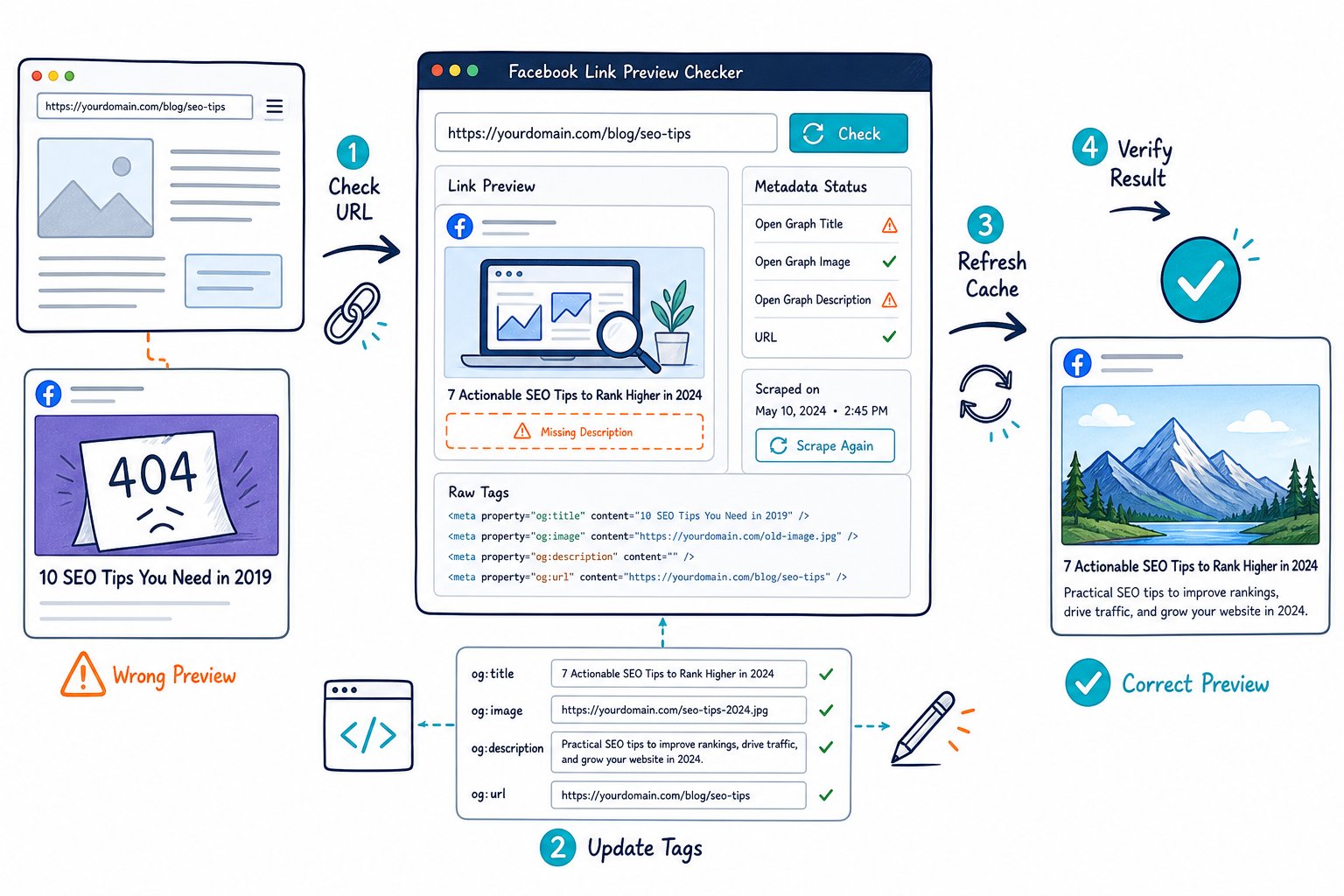
When a Facebook link preview isn’t showing correctly, the cause is usually visible in the raw page response. Your preview card relies on Open Graph fields that Facebook’s facebookexternalhit crawler reads when it fetches your URL.
A Facebook Link Preview Checker: How to Fix Incorrect Previews workflow helps you isolate the failed field before you publish another share.
Why Facebook Shows the Wrong Link Card
Facebook builds its card from the first valid Open Graph values it finds when it scrapes your URL. Wrong metadata, inaccessible images, redirects, and Facebook cache records can all lead to mismatched previews.
Which Open Graph Tags Does Facebook Read?
Your core open graph tags should include og:title, og:description, og:image, and og:url. Add og:type and og:site_name to give the shared card clearer context.
Place each open graph meta tag in the <head> of your raw HTML. Facebook reads meta tags during its crawl, so browser-side changes that appear after load don’t provide a reliable preview.
Use one clear value per field. Conflicting og:title or og:image entries create needless confusion when Facebook chooses a preview value.
Why Raw HTML Matters More Than the Rendered Page
Facebook reads server-rendered HTML, not the completed page you see after JavaScript runs. Dynamic content injected by Vue, React, or client-side Next.js code can leave the crawler with an empty or incomplete <head>.
Check the initial HTML response with View Source, not only browser DevTools. If your og:title, og:description, and og:image appear only after scripts execute, move metadata generation to server-side rendering.
For Next.js, generate metadata on the server through generateMetadata or your page-level metadata configuration. That gives crawlers a complete set of tags in the first HTTP response.
How Image URLs, Dimensions, and Formats Affect the Card
Your og:image needs an absolute HTTPS URL that returns HTTP 200 without login, cookies, or bot checks. Facebook has to be able to request the image URL directly.
Use a 1200 × 630 px image with a 1.91:1 aspect ratio for a dependable social card. JPG, JPEG, PNG, GIF, and WebP files work when the server returns the correct content type and the image size stays practical for fast retrieval.
Add og:image:width and og:image:height where your CMS supports them. These tags help the crawler identify the intended asset without waiting to inspect its dimensions.
When Canonical URLs and Redirect Chains Cause Mismatched Previews
Your og:url should match your canonical URL and the final shareable page URL. When these values point to different pages, Facebook may associate the shared cache with another version of the content.
Avoid redirect chains from HTTP to HTTPS, then from non-www to www, then to a trailing-slash variant. Use one permanent redirect to the final canonical URL, and make sure every version resolves consistently.
Query strings add another common wrinkle. Clean tracking parameters such as utm_, gclid, and fbclid from your canonical URL evaluation, while keeping your og:url fixed to the preferred page address.
Why a Corrected Page Can Still Show a Stale Preview
Facebook stores the metadata it captures at the time it scrapes a page. Updating your page doesn’t immediately replace the old title, image URL, or description in the shared cache.
You need to request a fresh scrape after publishing the repair. If the debugger still reports the old data, inspect the public HTML and image response again before trying another refresh.
A page-level audit in Check Page SEO helps you confirm the live title, canonical, image assets, indexability signals, and metadata before you ask Facebook to crawl the URL again.
How to Validate, Repair, and Refresh Metadata
A reliable repair process starts with the public HTTP response, then confirms Facebook crawler access, removes duplicate tags, and refreshes the cache only after the page is correct. Treat every failed preview as a crawl or metadata issue first.
Run a Source-Level Open Graph and Image Check
Open your URL in a private browser window and inspect View Source. Search for each required Open Graph field:
og:titleog:descriptionog:imageog:urlog:typeog:site_name
Confirm that og:image uses an absolute HTTPS URL and opens directly in a browser. Check its HTTP response, file format, dimensions, and whether the image server sends the correct asset without a redirect.
Use a link preview checker to compare the raw tags against the visual card. You should also check page structure with a text-to-HTML ratio SEO diagnostic if your CMS outputs heavy template markup that makes source review harder.
How to Test Facebook Crawler Access
Facebook’s facebookexternalhit crawler needs access to both the page and its image. A blocked crawler can create blank cards, old content, image failures, or debugger errors.
Check robots.txt, firewall rules, CDN settings, and bot protection policies. Cloudflare, WAF rules, Fastly, CloudFront, and Vercel security settings sometimes challenge automated requests even when the page loads normally for you.
Test from an unauthenticated session. Pages behind a login wall, IP allowlist, cookie banner gate, or staging password won’t produce a dependable Facebook feed preview.
How to Fix Duplicate or Conflicting Metadata
Duplicate metadata often comes from multiple SEO plugins, a theme template, and a custom code snippet all writing into the same <head>. WordPress sites commonly run into this when Rank Math, All in One SEO, theme settings, or older custom fields overlap.
Keep one owner for each tag. Remove duplicate Open Graph fields, then confirm the remaining value is the intended one in server-rendered HTML.
Check Twitter Card tags at the same time. twitter:card and twitter:image serve X previews, while Facebook reads Open Graph. Matching both sets keeps your social posts consistent while still allowing platform-specific image choices where needed.
How to Refresh Facebook Cache With the Sharing Debugger
Use the Facebook Sharing Debugger after your public HTML and image URL pass inspection. Enter the exact canonical HTTPS URL, review the scraped output, then choose Scrape Again.
Run the refresh twice when you change an image, since Facebook may need a second fetch to update image data. Keep the original image URL stable during testing where possible, then verify that the displayed preview uses the expected og:image.
Record the repair date and the old metadata value in your task notes. That makes it easier to diagnose a later cache issue after an image migration or CDN change.
What to Check in WordPress, Shopify, Webflow, and Next.js
In WordPress, set social metadata in one SEO plugin and clear your page cache and CDN cache after publishing. Rank Math and All in One SEO both need a single active configuration path for Open Graph output.
In Shopify, review the social sharing image and page-level title fields in the theme settings. Inspect the storefront HTML because app blocks and theme edits may introduce duplicate meta tags.
In Webflow, set the Open Graph title, description, and image in page settings, then publish the site before testing. In Next.js, output metadata through server-side rendering so generateMetadata creates tags in the initial response.
How to Verify Previews Across Facebook, Messenger, LinkedIn, and X
Facebook, Messenger, and Threads rely on Facebook’s shared cache, so one successful debugger scrape supports all three surfaces. After refreshing, confirm the final card in a private post or test conversation.
LinkedIn uses its own crawler and cache, so test it separately with the LinkedIn Post Inspector. X reads Twitter Card tags such as twitter:card and twitter:image, while Open Graph fields serve as useful fallback metadata.
Before publishing a major campaign, check your headline, image crop, and description on every platform where you plan to share it. Then download the Check Page SEO Chrome extension to audit the live page metadata, image assets, canonicals, and technical signals from the page you are viewing.