To check if a web page can be indexed by Google, test its crawl access, index directives, canonical target, HTTP response, and confirmed status in Google Search Console. A page needs technical eligibility before it can gain search visibility, organic traffic, or a place in the Google index.
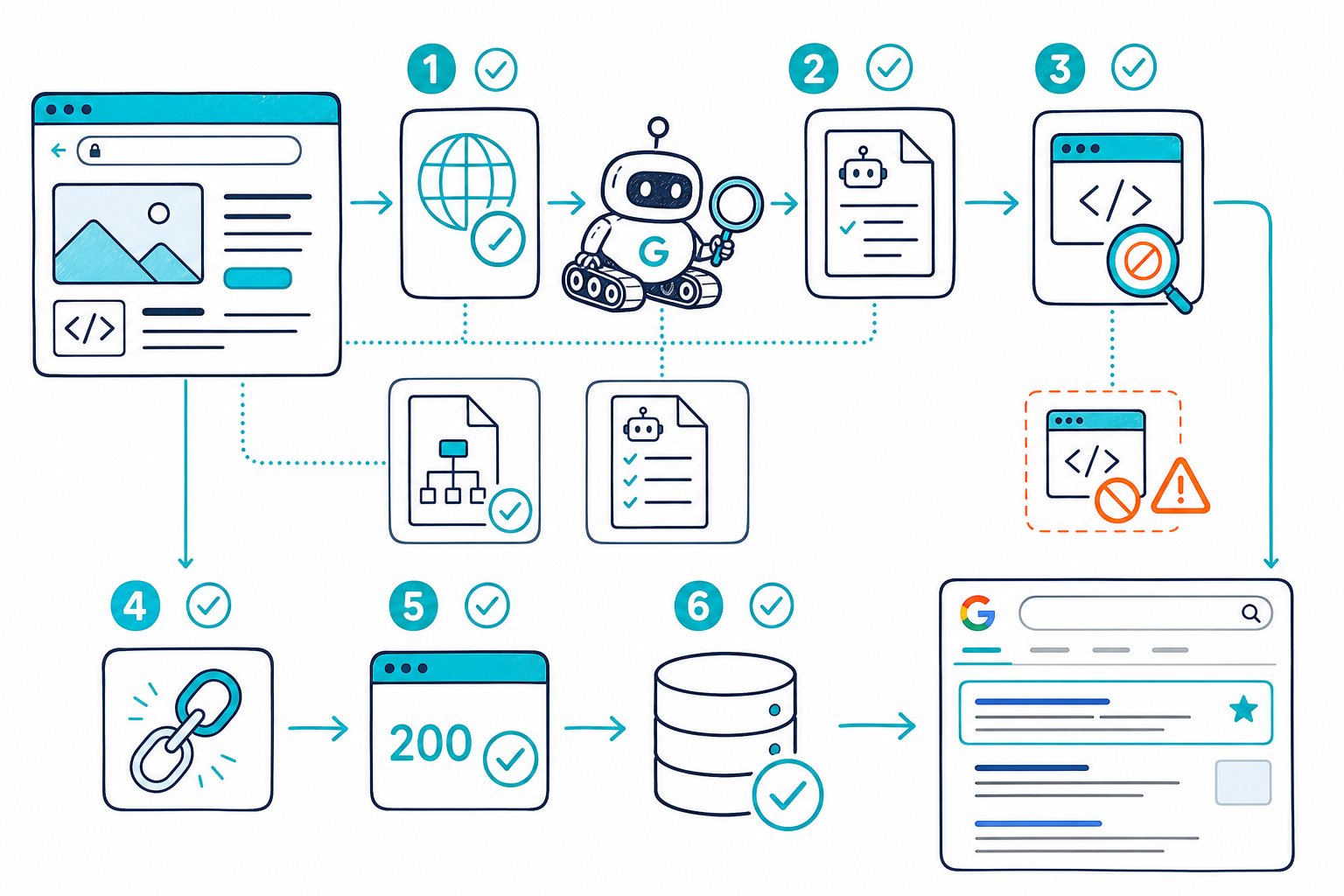
When you ask, “How to Check If a Web Page Can Be Indexed by Google,” separate indexability from being indexed. Indexability means Googlebot has permission and a valid path to process the URL, while indexed means Google chose that URL for its search index.
Verify Indexability Before You Check the Index
Before checking search results, confirm that Googlebot can crawl and index the page. A blocking directive, redirect loop, failed status code, or conflicting canonical can leave a page without a reliable path into Google Search.
Run these checks on both the rendered page and its HTTP response. Check Page SEO helps you review live metadata, canonical tags, robots directives, status signals, structured data, and page-level technical issues while you view the URL.
What Technical Signals Can Block a Page From Indexing?
The main blockers are crawl restrictions, noindex directives, non-200 HTTP status codes, and canonicals that point to another URL.
Check these items:
- A
200 OKHTTP status on the final URL - Googlebot access in
robots.txt - A missing
noindexmeta robots directive - A missing
X-Robots-Tag: noindexHTTP header - A self-referencing canonical tag for the URL you want indexed
- Content that provides distinct value beyond duplicate or thin pages
- Valid structured data where schema is used
A page can load perfectly in your browser and still serve an index-blocking header to search engine crawlers. This often happens after CMS template changes, staging releases, JavaScript deployments, and site migrations.
How Do Robots.txt, Noindex, and X-Robots-Tag Differ?
robots.txt controls crawling, while noindex controls whether a crawled URL remains eligible for Google’s search index.
Use each signal for a specific job:
- robots.txt: Limits crawler access to paths or files. Google can still discover blocked URLs through internal links, backlinks, or XML sitemaps.
- Meta robots noindex: Appears in the page HTML, such as
<meta name="robots" content="noindex">. Googlebot needs to crawl the page to see it. - X-Robots-Tag: Sends indexing instructions through the HTTP header. It is useful for PDFs, images, and other files without HTML meta tags.
Avoid blocking a URL in robots.txt when you also need Google to process a noindex directive. Let Googlebot crawl the URL until it drops from indexed pages, then decide whether the restriction still serves a purpose.
Why Canonicals and HTTP Status Codes Change the Outcome
A canonical tag tells Google which URL should represent a set of similar pages. If your page declares another URL as canonical, Google may consolidate indexing signals with that target and leave the current URL out of the index.
HTTP status also determines whether Google sees usable content:
| HTTP Response | Indexing Outcome |
|---|---|
200 OK | Eligible for indexing |
301 or 302 | Google evaluates the redirect target |
404 or 410 | Removed or excluded over time |
5xx | Crawling and indexing problems until fixed |
During audits, review canonical tags after parameter changes, pagination updates, faceted-navigation releases, and HTTPS migrations. Clean tracking parameters such as utm_, gclid, and fbclid before judging URL structure or canonical alignment.
Once the technical checks pass, inspect content quality too. Weak text-to-HTML ratios, thin sections, repetitive copy, and poor page structure can reduce the value Google sees. Use a text-to-HTML ratio SEO diagnostic to spot templates where boilerplate overwhelms the main content.
Confirm Google’s Index Status and Resolve Exclusions
Google Search Console provides the clearest confirmation of a URL’s indexing status because it reports Google’s view of the exact URL. Use it to confirm whether the URL is on Google, identify the selected canonical, review crawl timing, and validate fixes.
For owned sites, pair Search Console data with a live technical audit. That gives you the page’s current HTML signals alongside Google indexing data, making it easier to separate a release problem from an older crawl result.
When Should You Use the Site: Search Operator?
Use a site: search for a quick visibility check, especially when you need to spot a known indexed URL or see which pages from a folder appear in Google Search results.
Search for:
site:example.com/full-page-url/ You can also search a domain or directory:
site:example.com/blog/ Treat the site: search operator as a quick diagnostic, not an indexing verdict. Search results can omit indexed URLs, show canonical variants, or return outdated patterns. Use Google Search Console when the status affects a launch, migration, deindexing task, or high-value landing page.
How Do You Validate a URL in Google Search Console?
Use the URL Inspection tool for the exact URL, including its protocol, trailing slash, and parameter format. Google’s indexing and ranking FAQ explains how Google discovers and adds pages to search results.
Follow this workflow:
- Open Google Search Console for the verified property.
- Paste the exact URL into URL Inspection.
- Review the indexing status and Google-selected canonical.
- Check the last crawl date and crawl eligibility.
- Select Test Live URL after publishing a fix.
- Submit Request Indexing when the live test passes.
Request indexing is a submission signal, not a guarantee that the page will enter the Google index. Keep the page linked from relevant internal pages and include the preferred canonical URL in your XML sitemap.
What to Fix When Google Has Crawled but Not Indexed a Page?
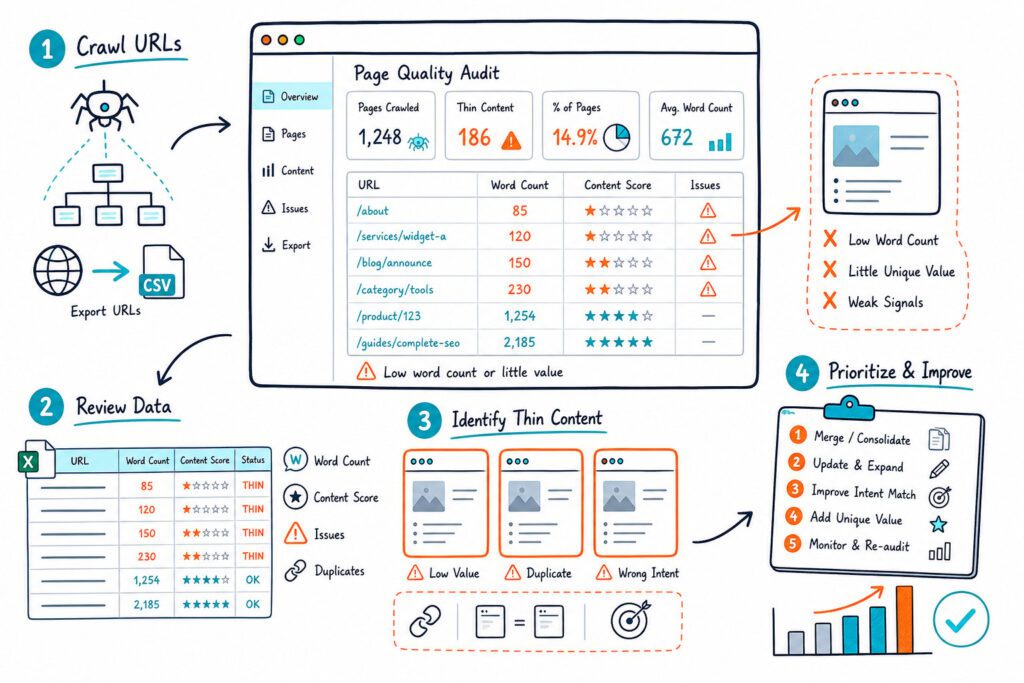
When Google has crawled a page but excluded it, focus on page value, duplication, and internal signals. This status often appears on pages with near-identical templates, sparse copy, weak internal linking, or content that misses the intent behind the target query.
Work through these fixes:
- Strengthen the page’s unique information and target-topic coverage.
- Add descriptive internal links from relevant, indexed pages.
- Confirm the title, H1, headings, and body answer the same search intent.
- Remove duplicate pages or consolidate them with a canonical and redirect plan.
- Check that the canonical URL returns
200 OK. - Review external links and backlinks for important commercial pages.
- Find missing competitor topics with a content-gap review.
For pages that earn impressions but few clicks, use Search Console query data to align your title tag and meta description with the language searchers use. A strong index status doesn’t guarantee rankings, since search visibility also depends on relevance, quality, links, and user satisfaction.
How Should You Monitor New Pages and Large URL Sets?
Monitor new pages through XML sitemaps, the Pages report, and grouped URL checks. Your sitemap should contain preferred, indexable 200 OK URLs only, with no redirects, blocked paths, or noindex pages.
For large sites, group URLs by template, directory, language, or programmatic SEO pattern. Review indexing issues at the group level after a site migration or deployment, because one robots rule, canonical setting, or header can affect thousands of indexed URLs.
Use a bulk index checker for an initial list, then validate priority URLs in Search Console. Track these fields in your audit sheet:
- URL
- Intended canonical
- HTTP status
- Robots and noindex state
- Sitemap inclusion
- Internal link count
- Search Console index status
- Fix owner and retest date
Before publishing important pages, run a broken link check and make sure the page has clear internal links from relevant hubs. To speed up live pre-launch checks, install the Check Page SEO Chrome extension and audit the page where you work.