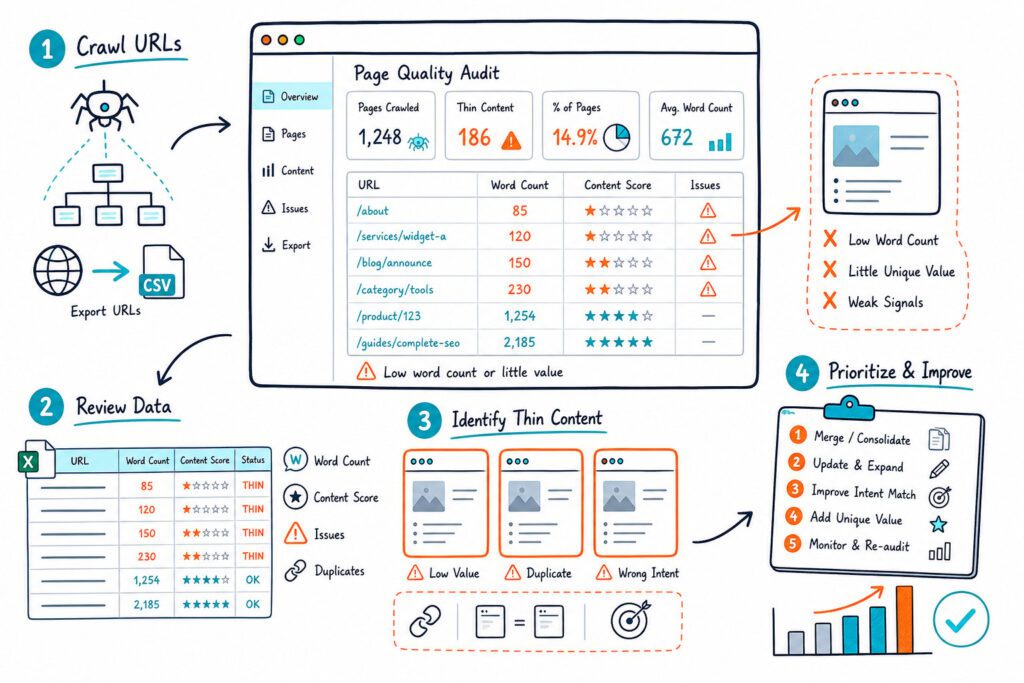
Missing meta descriptions leave your search snippet to Google’s selection process. That can weaken your message and lower click-through rate. You can find missing meta descriptions by checking live HTML, crawling indexable URLs, and validating what search engines can access before you write replacements.
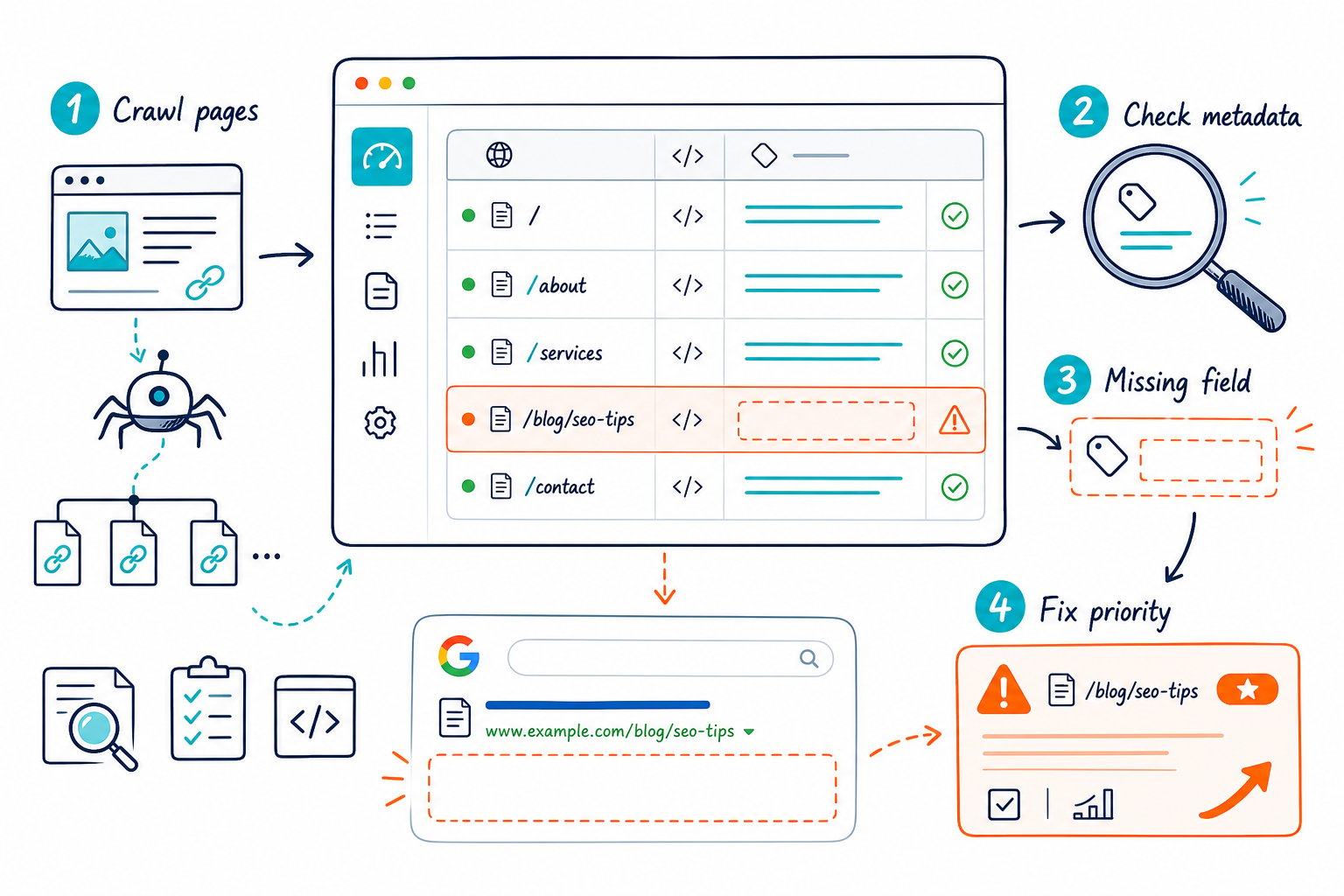
When you learn How to Find Missing Meta Descriptions, start with pages that earn impressions. A clean audit separates truly absent metadata from JavaScript rendering delays, CMS template faults, duplicate descriptions, and URLs that should stay out of search results.
How to Detect Missing Descriptions Accurately
Accurate detection means checking the meta description tag in the page’s HTML and confirming that the URL is indexable. A missing tag, an empty value, and a repeated template description are different problems, so they need different fixes.
What Counts as Missing, Empty, or Duplicate Metadata?
A missing meta description means the <meta name="description"> tag is absent from the head section. An empty description has the tag but no useful content, such as content="" or placeholder text.
Duplicate descriptions occur when multiple URLs publish the same metadata. This often happens with filtered category pages, location pages, paginated archives, and CMS-generated landing pages.
Flag duplicates separately because each page needs a page-specific summary only when it serves a distinct search intent. Google can generate its own snippets from visible page text, but your description gives it a stronger starting point and helps keep the search message aligned with the page.
How to Check One URL in View Page Source and Rendered HTML
For a single URL, open View Page Source and search for name="description". You want one descriptive tag in the source code, placed within the HTML head section.
Then inspect the rendered HTML in browser DevTools. JavaScript frameworks sometimes inject metadata after the page loads, creating a gap between the page source and what users see in the browser.
Check these details:
- Is the tag present in page source?
- Does the
contentattribute contain meaningful text? - Is there more than one description tag?
- Does the canonical URL point to the indexable version of the page?
- Does the rendered HTML match the metadata sent to crawlers?
A metadata audit should also review Open Graph descriptions, though og:description does not replace the standard meta description tag. A useful metadata audit checklist also includes canonicals, robots directives, favicons, and social tags.
How to Audit Multiple URLs With Crawlers and Browser-Based Checks
For a site audit, crawl the XML sitemap and key internal-link paths, then filter for missing meta descriptions, empty tags, and duplicates. Screaming Frog and Sitebulb can handle large URL sets when their crawlers can access the site.
Browser-based checks add value for pages that crawlers miss, including CMS previews, staging environments, pages behind login walls, and client portals. Check Page SEO scans the live page in your browser, so you can review metadata while looking at the exact version your team is editing.
Export findings into groups: indexable pages with no description, pages with empty descriptions, duplicate descriptions, and URLs blocked from indexation. That grouping keeps low-value cleanup work from eating up the audit.
Why JavaScript, Caching, and CMS Templates Create False Positives
JavaScript can create false positives when metadata loads only after client-side rendering. A crawler that does not render JavaScript might report a missing meta description even though the browser injects it later.
Caching causes another common problem. You update metadata in WordPress, Shopify, or a custom content management system, while the CDN or page cache continues serving older HTML. Purge the relevant cache, load the page in an incognito window, and recheck the source code.
Template logic causes the highest-volume errors. A conditional field might work for blog posts while leaving category pages blank. Dynamic product or location templates can also produce the same description across hundreds of URLs.
Review one URL from every template type before treating the report as a copywriting task. Otherwise, you may polish a handful of descriptions while the template keeps creating the same mess.
How Google Search Console Helps Prioritize Rather Than Discover Every Gap
Google Search Console helps you decide which missing meta descriptions deserve attention first. It does not provide a complete metadata inventory, so use it after your crawler or SEO audit tool has identified the gaps.
Filter for affected URLs with strong impressions, weak CTR, or rankings near the first page. A page ranking in positions 5 through 15 with many impressions is often a better candidate than an unranked archive URL.
Use URL Inspection to confirm indexability and request a re-crawl after publication. Search Console data beside a live audit also helps you connect a metadata issue to real search visibility, rather than treating every missing field as equally important.
How to Prioritize, Fix, and Validate Metadata
Fix indexable pages with impressions and clear commercial or informational intent before low-value archives. Write descriptions that describe the individual page, deploy template repairs carefully, then measure results after Google has re-crawled the URL.
Which Indexable Pages Should Be Fixed First?
Start with URLs that meet all four conditions:
- They are indexable and canonicalized correctly.
- They receive organic search impressions.
- They target a valuable query or support a conversion path.
- Their current SERP snippet is weak, off-topic, or inconsistent with the landing page.
Prioritize core landing pages, high-traffic category pages, service pages, and location pages. Use Google Search Console to sort by impressions and compare CTR against nearby ranking positions. Google Analytics can help you identify pages that also drive leads, sales, or assisted conversions.
Low-value tag archives, internal search results, duplicate filters, and noindex pages should stay out of the first fix batch. Review their indexability and canonical setup before adding metadata.
How to Write Useful, Page-Specific Descriptions
Write a concise summary that matches search intent, includes the page’s primary topic naturally, and gives people a reason to click. A working target is 150-160 characters, though pixel width and device display can still truncate the snippet.
Use this pattern:
Page purpose + specific value + relevant action or qualifier
For example: “Compare cloud accounting software features, pricing, and integrations to choose the right platform for your small business.”
Avoid keyword stuffing, broad claims, and copied descriptions. You also don’t need to force every target keyword into one sentence. Search engines rewrite snippets when page text better matches the query, so your visible intro, H1, and title tag should support the same promise.
When you need a fast draft from page findings, an AI prompt for rewriting a meta description gives you structured instructions that you can refine for voice and accuracy.
How to Resolve Template-Level Issues in WordPress, Shopify, and Custom CMS Platforms
In WordPress, check your SEO plugin settings, template variables, and fallback fields. Yoast SEO or another SEO plugin may pull descriptions from excerpts, taxonomy text, or default templates. Test posts, pages, categories, products, and custom post types individually.
In Shopify, inspect product, collection, blog, and page templates. Missing descriptions often trace back to blank SEO fields or theme logic that fails to output values for a specific resource type.
For a custom CMS, ask your developer to confirm that the server returns one escaped <meta name="description"> tag in the initial HTML. Build rules for fallbacks, character limits, and uniqueness. A template should never generate a blank tag when a field is missing.
When Missing Descriptions Should Not Be Fixed
You don’t need to write a description for every URL your CMS produces. Keep the effort focused on pages that are indexable, useful, and intended to compete in Google search.
Skip URLs that are correctly noindexed, redirected, canonicalized to another page, blocked from indexing for a valid reason, or excluded from your public search strategy. Fixing metadata on thin faceted pages can create more maintenance work without improving rankings.
If hundreds of URLs share a duplicate description because they are near-duplicates, address the URL strategy first. Consolidation, canonical tags, parameter handling, or noindex rules can solve the root issue more effectively than rewriting hundreds of fields.
How to Verify the Fix After Re-Crawl and Measure Search Performance
After publishing, purge the relevant caches and inspect both the page source and rendered HTML. Make sure the description is unique, appears only once, and is attached to the canonical, indexable URL.
Request indexing through Search Console URL Inspection for priority pages. Then note the deployment date and compare equal periods after Google has re-crawled the page. Use the same days of the week when you can, especially for pages with seasonal traffic patterns.
Measure impressions, clicks, CTR, and average ranking position. A description change is mainly meant to improve search-result messaging, so CTR is the clearest early signal. If rankings or search intent shifted during the test, inspect the full SERP before giving the metadata all the credit.
For repeatable checks, client-ready exports, and validation across live pages, use SEO reports to keep your fixes and results in one record. When you are ready to audit the next page, Download the Check Page SEO Chrome extension and inspect the live metadata before it reaches the next crawl cycle.