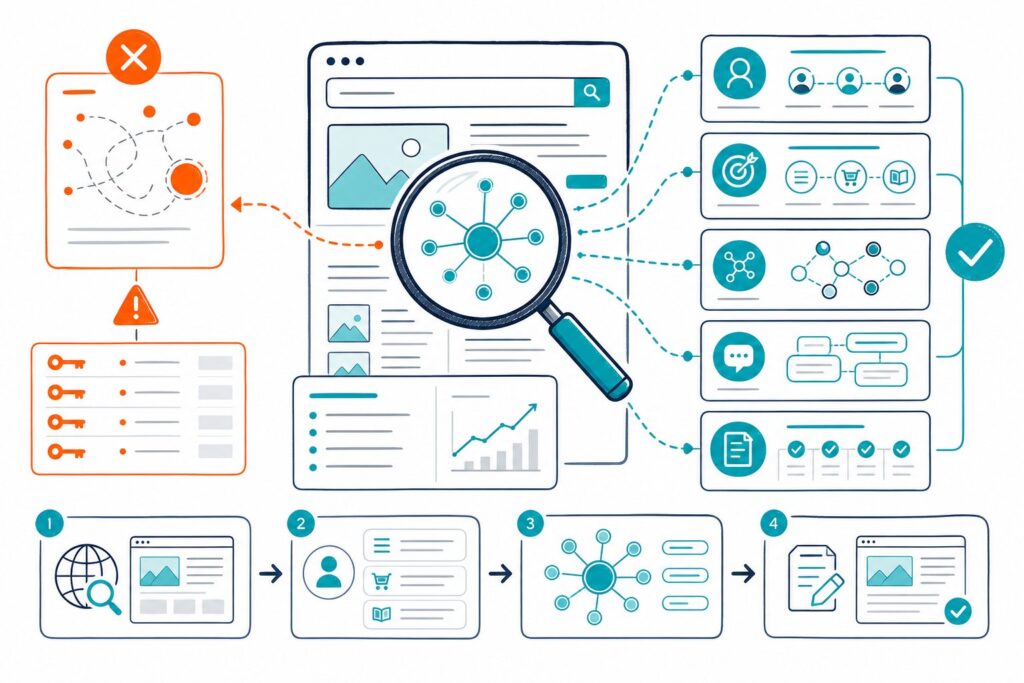
When you need to diagnose a live URL, a basic title-tag checker just won’t cut it. You have to dig into the rendered DOM, indexability directives, headings, entities, schema, redirect behavior, Core Web Vitals, and the page’s actual Search Console performance before making any recommendations.
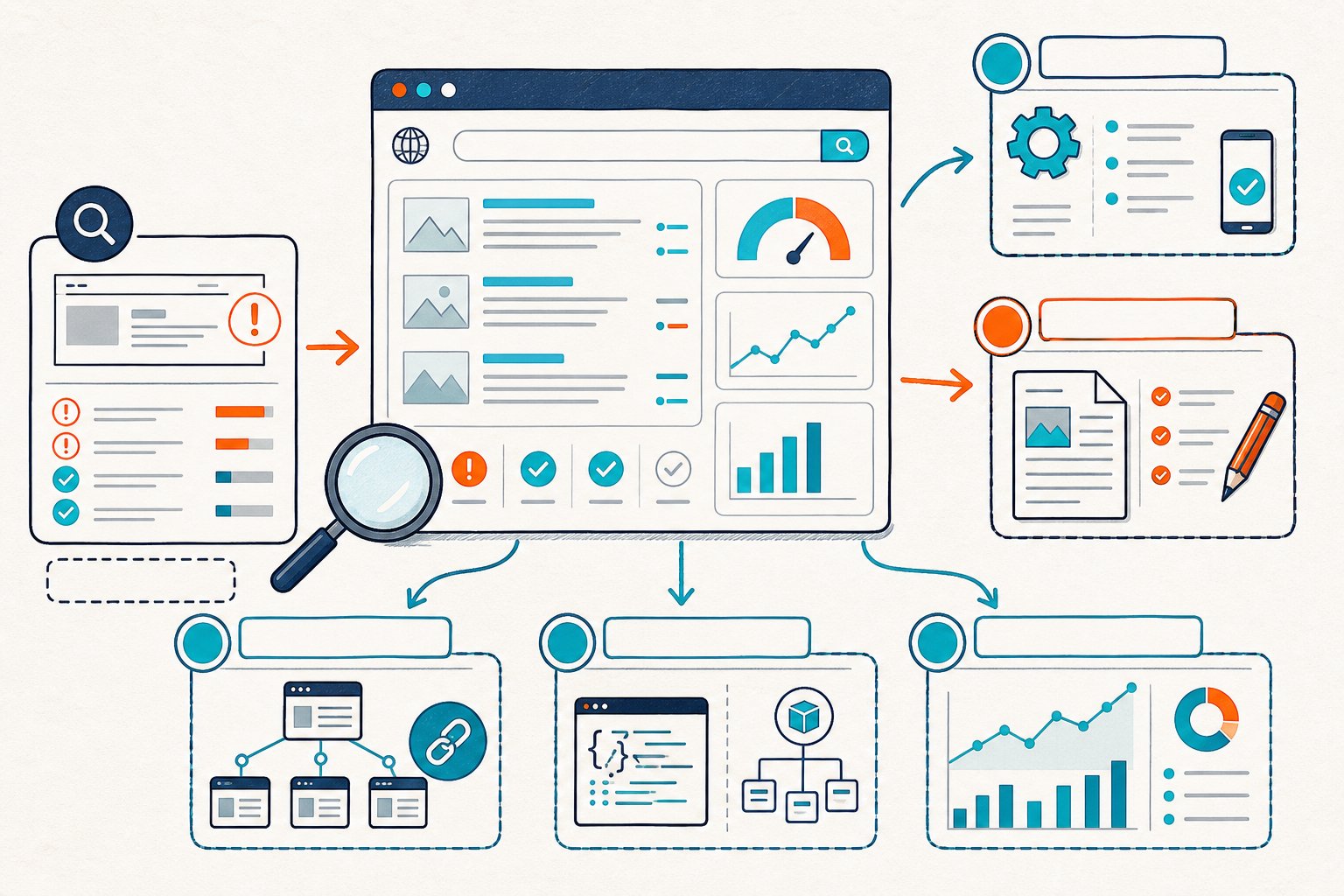
The best Detailed SEO alternative for you depends on where your workflow tends to hit a snag. Some tools are great for a quick browser check, others for authority metrics, redirects, structured data, or crawling an entire site.
Pick the right tool for the right step, and always validate your changes with solid before-and-after data. No sense guessing if the numbers are right there.
1) Check Page SEO
Check Page SEO is the go-to when you need to audit whatever page you have open in Chrome. It works on staging URLs, CMS previews, or even pages hiding behind a login.
You can see rendered headings, metadata, canonicals, robots directives, links, images, schema, content signals, and a bunch of technical checks without sending your URL off to the cloud.
The real magic is workflow depth. You can compare a competitor page, peek at your own Google Search Console clicks, impressions, CTR, and queries right next to your audit, then export it all into a tidy report or an AI-ready brief.
Use it after you’ve nailed down your target query, but before you start rattling off recommendations. Treat its score as a guide for what to fix first, not as some magic ranking number.
Premium actions like competitor comparisons, reports, local data, and AI prompts use credits, but the core audits are free. Not a bad deal.
Download the Check Page SEO Chrome extension if you want a live, page-level audit that works even in logged-in environments.
2) SEO Pro Extension
SEO Pro Extension is your friend when you need a fast on-page QA. It pulls metadata, headings, canonicals, Open Graph data, robots directives, and social previews into one handy browser panel.
Great for those moments before launch, especially if your content team has been fiddling with templates or migrating pages between CMS platforms.
It’s perfect for catching the basics: missing H1s, duplicate titles, weak meta descriptions, or absent canonicals. Think of it as a lightweight second opinion if your main tool raises a red flag.
Just don’t expect it to replace a full crawl or a deep Search Console dive. You’ll still need to check redirects, response headers, and index coverage elsewhere, especially if migration risks are lurking.
Use it during your rendered-page relevance and metadata check. Quick, painless, and surprisingly helpful.
3) Ahrefs SEO Toolbar
Ahrefs SEO Toolbar shines when you want competitor context, backlink data, and organic-search estimates right next to the visible on-page stuff. You can check titles, descriptions, headings, canonicals, word count, and links while eyeballing a competitor’s URL.
It’s especially handy when a competitor’s page is outranking yours, even though their content looks weaker. You can quickly see if it’s a content issue, a domain authority gap, or maybe they’ve just got more internal links.
Heads up: many metrics require an Ahrefs account, and what you see depends on your plan. Also, these are third-party estimates, not Google’s secret sauce.
Use this at the competitor-comparison stage. Pair it with a live page auditor if you need deep checks on authenticated or rendered pages.
4) SEOquake
SEOquake has been around forever and still gets the job done for quick diagnostics, keyword density, link counts, SERP overlays, and domain-level metrics. It’s solid when you want broad data during prospecting or when you’re skimming search results to pick a competitor for a closer look.
The SERP overlay is a time-saver. You can spot pages with unique title patterns, page-level stats, and optimization choices without opening every single result.
Keyword density stats can be misleading, though. Just because you hit a certain percentage doesn’t mean your page actually answers the user’s question or covers the right entities.
Use SEOquake during SERP scouting and early competitor selection. Keep your extension stack lean, though; too many panels can get noisy fast.
5) MozBar
MozBar is your tool when you want to check link equity, domain strength, or page authority proxies. You can quickly review Domain Authority, Page Authority, link attributes, and markup while browsing.
Use it to set realistic expectations. If your competitor’s got deeper content and way more links, tweaking a single H2 won’t close the gap, though it might help a bit.
Moz metrics are just that: Moz’s take on authority. They’re not Google’s ranking factors, so don’t treat them as gospel. Access to deeper data also depends on your Moz account level.
Pull out MozBar after your on-page review, especially when you’re trying to figure out why two similar pages perform so differently.
6) SEO Meta In 1 Click
SEO Meta In 1 Click is a clean, no-fuss option for reviewing visible metadata, heading hierarchy, links, images, canonicals, and social markup. Editors, devs, and consultants love it for quick pre-publish checks.
The heading view is gold when you want to see if your H2s and H3s actually break up subtopics in a way that makes sense. Don’t just check the tag order. Consider about whether your headings help visitors scan, support key entities, and give each section enough meat.
It’s not super deep. You won’t get full crawl coverage, Search Console data, or competitor analysis from this little extension.
Use it for a fast content and template QA. It’s a great backup for teams who want a simple browser panel with zero fuss.
7) Redirect Path
Redirect Path is your specialist for sniffing out HTTP status codes, redirect chains, canonical weirdness, and response-header issues. Use it anytime a URL changed, a migration’s underway, a CDN rule popped up, or indexation suddenly gets wobbly.
A redirect might look fine in your browser but still pass through unnecessary hops, clash with a canonical, or return a status code that confuses bots. Always check the full chain, from the old URL to the final destination, and don’t forget to test both HTTP and HTTPS versions.
This extension doesn’t care about your content or competitor gaps. It’s laser-focused on redirects, which is exactly what you want when things get messy.
Use it during crawlability and implementation QA. And if you’ve got device-specific rules, test redirects on both desktop and mobile user agents.
8) OpenLink Structured Data Sniffer
OpenLink Structured Data Sniffer is perfect for peeking at structured data like JSON-LD, Microdata, and RDFa right on the page. It’s handy when schema is present but you don’t want to dig through raw source code.
Check if your schema types actually match the page’s purpose. A product page, article, local business, FAQ, or organization page all need different markup.
The tool shows you markup, not guaranteed rich-result eligibility. Just because your syntax is valid doesn’t mean Google will show a rich result, and you shouldn’t use schema to sneak in unsupported ratings or business details.
Run this after checking canonicals, robots, and visible content. For formal validation, follow up with Google’s structured-data testing tools.
9) Hreflang Tag Checker
Hreflang Tag Checker is a lifesaver for international SEO when your URL has language or regional versions. Use it to spot missing return tags, wrong language codes, self-reference gaps, and conflicting canonicals.
Hreflang errors can hide in plain sight. The page might look perfect to users, but the real problem often lives in templates, XML sitemaps, HTTP headers, or CMS rules that spit out inconsistent alternates.
This tool isn’t a full international crawl, though. You still need to check that each alternate URL is indexable, canonicalized, and available to crawlers without redirects or soft errors.
Use it during technical QA for multilingual templates, regional service pages, and international migrations. Don’t just check one successful URL. Spot-check a good sample of templates.
10) Screaming Frog SEO Spider
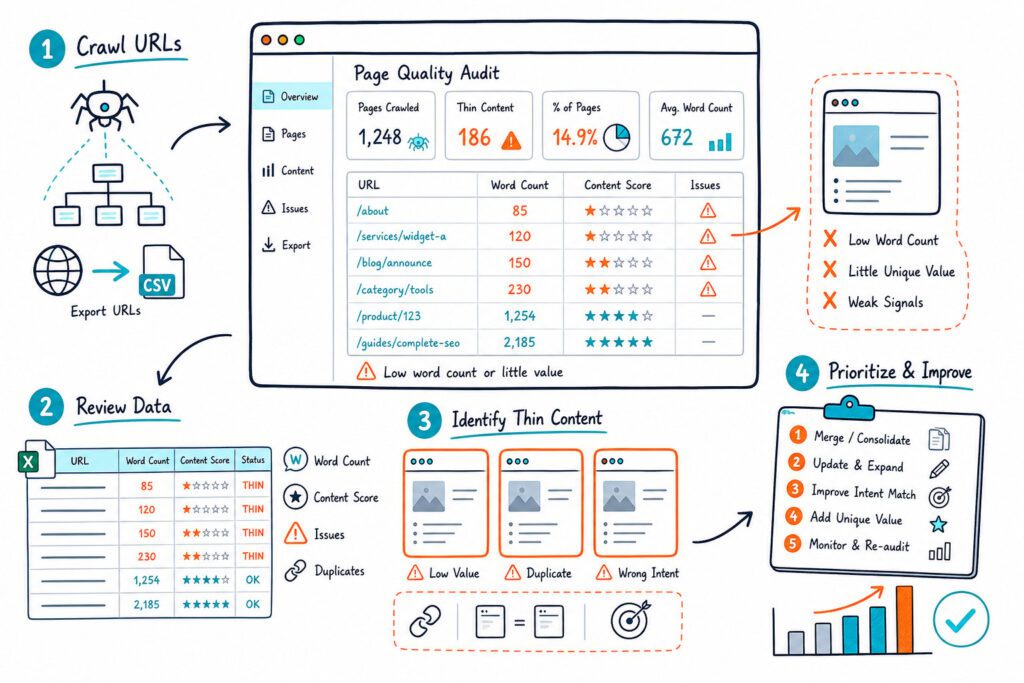
Screaming Frog SEO Spider is the heavy hitter when a single-URL issue might be a template-wide or site-wide mess. You can crawl titles, descriptions, headings, canonicals, response codes, internal links, directives, duplicate content, images, JavaScript-rendered pages, and more.
Use it if a live-page review uncovers a problem that could be repeating everywhere. For example, if one product page has a duplicate canonical or thin category copy, crawl the whole folder to see if it’s a small glitch or a massive headache.
You can plug in Google Search Console data and crawl exports to prioritize URLs by impressions, clicks, and risk. You’ll need a paid license for big crawls and fancy settings.
Heads up: desktop crawlers might not reach pages behind a login unless you set up authentication right. For live authenticated checks, start with a browser-based auditor, then crawl what you can access.
How to Choose a Detailed SEO Alternative
Pick your tools based on the decisions you need to defend, not just how many shiny metrics a toolbar spits out. Most folks do best with one live page auditor, one technical specialist, and a crawler for pattern validation.
Rendered DOM Versus Raw HTML
Always check the rendered DOM if JavaScript, personalization, cookie banners, or CMS components mess with visible content. Raw HTML can miss injected headings, hidden stuff, lazy-loaded links, and what actually gets rendered.
Use a browser tool for the active page, then bring in a crawler to see if the same problem shows up at scale. For content analysis, focus on the main content, not the nav or footer fluff.
Authenticated and Staging URL Access
If your key URL is hiding behind a login or sitting on staging, grab a tool that runs in your browser session. That way you’re seeing what editors and devs see, not some stripped-down version.
Cloud tools and desktop crawlers are still handy, but you’ll need to set up authentication and they might not catch every session-specific quirk. Watch those staging robots directives so you don’t accidentally block the wrong thing.
Indexability, Redirects, and Structured Data Coverage
Your tool should show you the canonical URL, meta robots, X-Robots-Tag (if it’s there), HTTP status, redirect chain, and schema markup. These checks matter because even a killer page won’t perform if it’s blocked or canonicalized somewhere else.
Use specialist extensions for redirect and hreflang QA. Use a schema viewer for markup. Don’t expect one extension to catch every server-side oddity.
Performance Impact and Browser Compatibility
Too many extensions can slow your browser to a crawl and mess with your testing. As of 2026, Detailed SEO Extension is still a crowd favorite, with over 500,000 users in a recent roundup.
Only keep the extensions you actually use every week. Check update history, permissions, Chrome compatibility, and whether the extension runs on every page or only when you say so.
Exports, Integrations, and Pricing Limits
Exports are key if you need to turn findings into dev tickets, client reports, or a test plan. Look for CSV or PDF reporting, competitor comparisons, and Google Search Console integration where it matters.
Always check pricing before you lock in a workflow. Free tools may cap crawl volume, data exports, historical metrics, or premium checks. A cheap tool that can’t export evidence can end up costing you more time than it saves.
A Page-Level SEO Testing Workflow
A solid audit turns your observations into a testable plan. Make one clear hypothesis, cut down technical risk, and measure your results against a fair baseline.
Establish the Query Intent and Search Console Baseline
Start with your URL, target query group, and the likely search intent. Review Search Console clicks, impressions, CTR, average position, ranking queries, and date trends for the specific page.
Record your baseline before you touch anything. If you’ve got a high-impression, low-CTR page, you probably need a better title or snippet. If you’re stuck at the bottom of page one, maybe you need stronger coverage, clearer headings, better internal links, or a sharper intent match.
Audit Relevance, Crawlability, Trust, and Performance Signals
Check the rendered title, H1, H2s, main content, entities, internal anchors, images, canonical, robots directives, status code, schema, and mobile rendering. Then review Core Web Vitals and basic accessibility issues if they impact usability.
Look for real evidence, not just surface-level fixes. A rewritten title won’t fix a noindex. More copy won’t help if your page doesn’t answer the right query. Trust signals like author info, business details, reviews, and clear policies matter most when users need reassurance.
Compare One Relevant Competitor Page
Pick a competitor that’s already ranking for your target keyword and has the same vibe or intent as your page. Check out their structure, headings, content depth, and what kind of media they’re using.
Take a peek at their internal links, the purpose of the page, and any trust signals that are front and center. Don’t just copy them or chase their word count like a dog after a squirrel.
Instead, look for gaps: missing subtopics, weak proof, clunky formatting, or just a smarter way to help visitors get what they came for.
Prioritize by Impact, Implementation Risk, and Testability
Start with changes that have a clear “why” and won’t blow up in your face if you need to undo them. If there are indexability or canonical issues, knock those out first.
Next up: tackle mismatched titles and H1s, missing sections, sad internal links, or a mobile experience that makes you want to throw your phone. If trust claims feel flimsy, shore those up too.
Try not to pile on a ton of unrelated changes at once. If you rewrite your title, add a new table, change redirects, and launch a new template all at once, good luck figuring out what actually moved the needle.
Measure Equivalent Pre- And Post-Change Periods
After you hit publish, jot down the deployment date and sit tight until you’ve gathered enough data. Patience is key here. Do not jump the gun.
When you’re ready, compare equal stretches of time, making sure you’re lining up the same days of the week. That’s especially important if your site has big swings between weekdays and weekends, or if you’re at the mercy of seasonal traffic.
Take a good look at clicks, impressions, CTR, average position, and the types of queries you’re getting. Toss conversions and any crawl or indexation changes into the mix too.
If you spot a dip in performance, your first move should be to check for technical hiccups. On the flip side, if your experiment is a win, jot down what you think made the difference and roll it out to similar pages, but don’t get carried away.