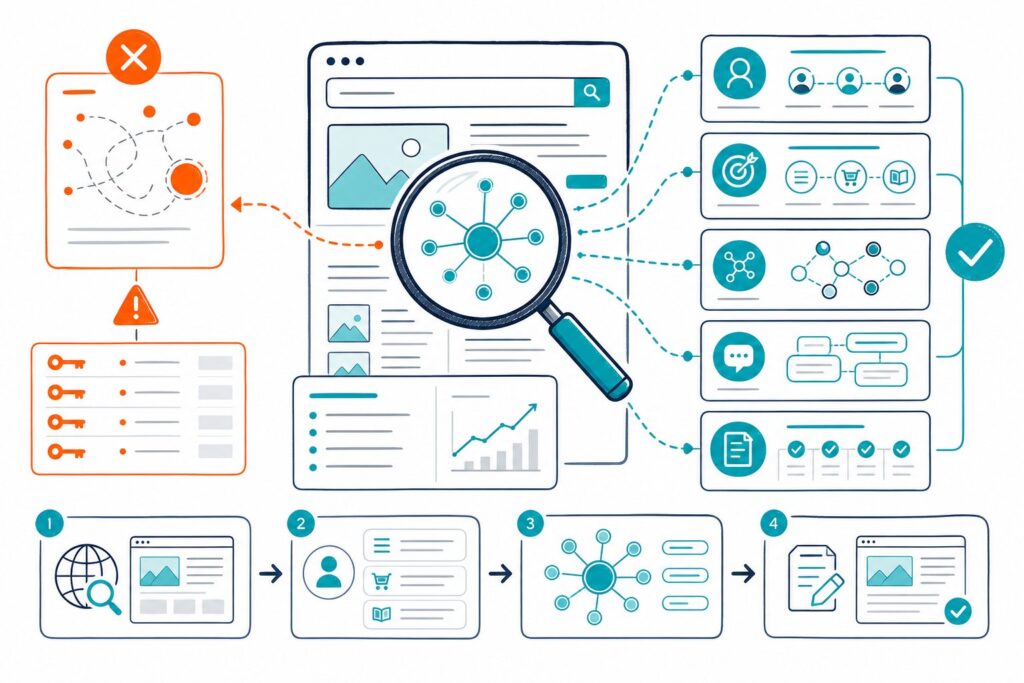
MozBar still gives you quick authority metrics and on-page checks. But let’s be honest, live URL work now demands way more than that.
You need to poke around the rendered DOM, double-check indexability and redirects, size up a real competitor, and actually connect page changes to clicks, impressions, CTR, and average position.
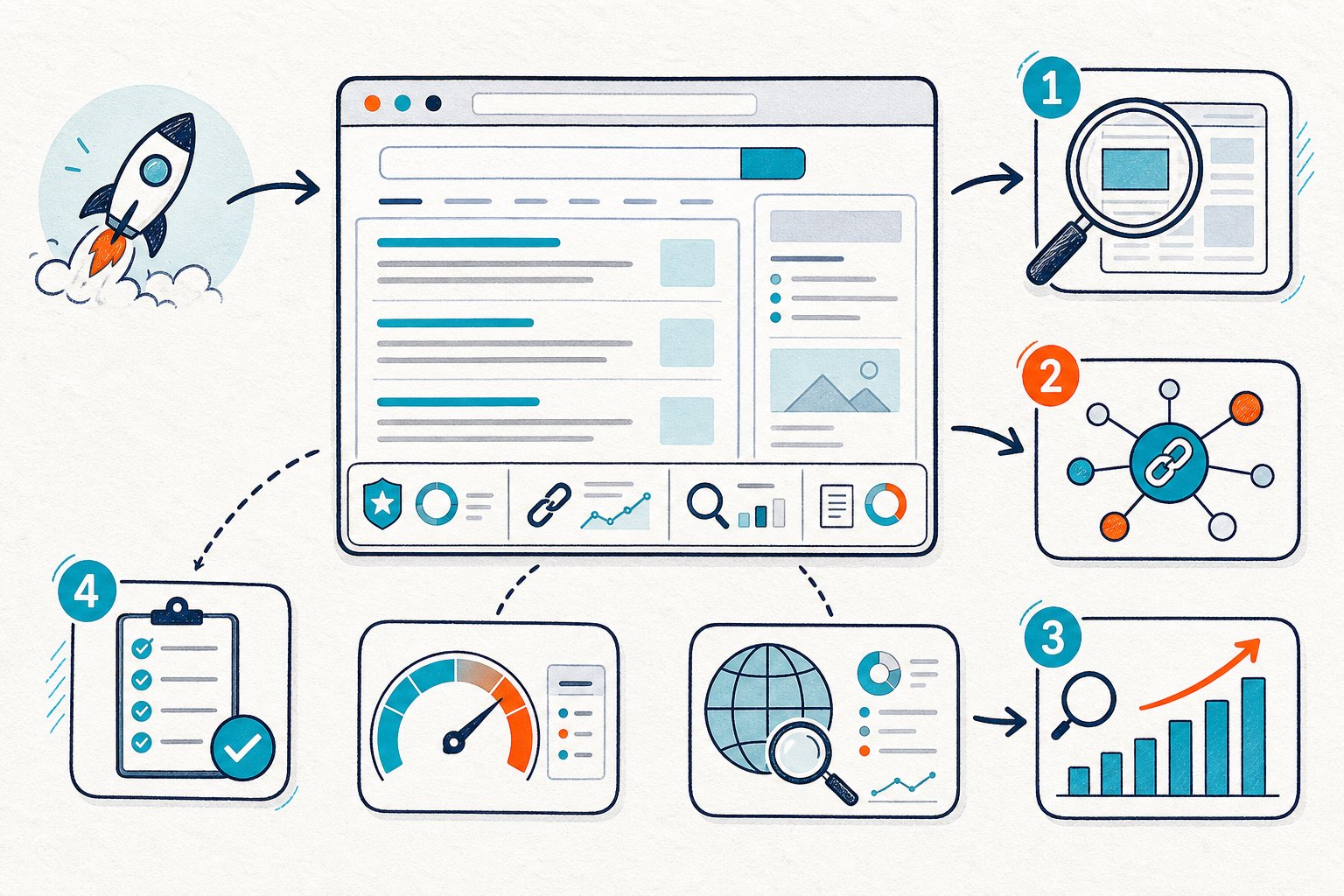
The best free MozBar alternatives really depend on where your audit is getting tripped up. Some are perfect for logged-in staging pages.
Others shine for SERP metrics, technical checks, link sleuthing, or performance diagnostics. Pick the right extension for the right job instead of treating any one “score” as gospel.
1) Check Page SEO
Check Page SEO is a powerhouse when you need to audit the live page in your browser. That includes authenticated CMS previews, staging URLs, and even client pages hiding behind login walls.
You can dig into metadata, headings, rendered content, links, images, schema, canonicals, robots directives, and indexability signals without ever copying a URL into a crawler. That’s a real time saver.
Its secret weapon is workflow depth. You can compare a competitor, spot heading and semantic gaps, then see your Google Search Console clicks, impressions, CTR, and ranking queries right next to your audit findings.
Use it before and after you ship content or technical changes. Treat its Tech, Index, Content, and page scores as prioritization nudges, not a magic Google ranking number.
Free structural audits are on the table. Reports, competitor comparisons, AI prompts, and local data use credits, but you can Add to Chrome for free if your work starts with the actual page, not a spreadsheet.
2) Detailed SEO Extension
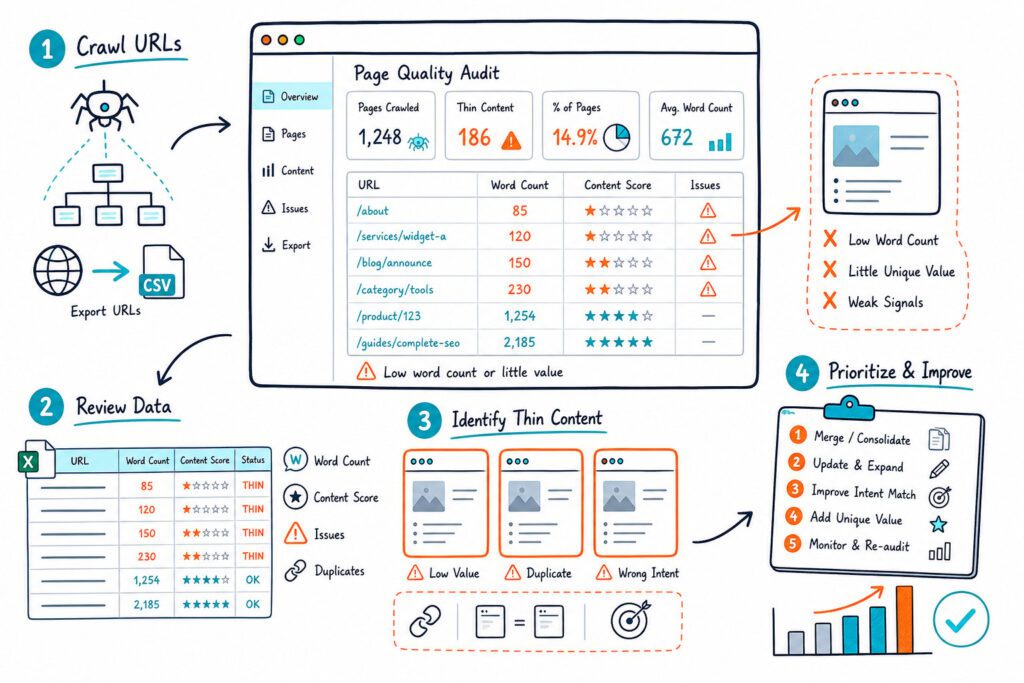
Detailed SEO Extension is a speedy little tool for checking title tags, meta descriptions, headings, canonicals, robots directives, structured data, links, and images. It’s great for a quick technical snapshot before you start editing or pop open dev tools.
You’ll probably reach for it early in the audit, just to see if the visible page matches the basic HTML signals. Its heading view is a lifesaver for spotting duplicate H1s, skipped heading levels, or thin spots that need beefing up.
The catch? It won’t give you Search Console context or a structured competitor-gap workflow. And it can’t replace a crawl for sitewide duplication or template issues.
Use Detailed SEO Extension for a fast diagnostic pass. Pair it with Search Console and a rendered-page auditor when you need to prove if an issue is actually hurting search performance.
3) Ahrefs SEO Toolbar
Ahrefs SEO Toolbar is your go-to when you want SERP and backlink context while scoping out a competitor or prospect. It pops up SEO metrics, page info, and link data right in your browser and Google results.
Use it when picking competitors. Sometimes the page outranking you just has better links, a smarter format, or nails the searcher’s intent. Toolbar metrics help you decide if a competitor is worth a deep dive before you start copying their structure.
Free access is a bit limited. If you want the good stuff, including keyword, backlink, and traffic data, you will need an Ahrefs account.
For page audits, use Ahrefs SEO Toolbar to get the lay of the land. Then dig into the competitor’s actual headings, links, content depth, and conversion tricks.
4) SEOquake
SEOquake has been around forever and still gets the job done for quick page checks and SERP overlays. You can skim metadata, headings, keyword density, internal and external links, and a handful of third-party SEO metrics.
It’s handy for your first audit pass, especially if you want a broad view without juggling a bunch of tabs. The SERP overlay is great for spotting title patterns and common content formats across a results page.
On the flip side, signal quality can be iffy. Keyword density and authority numbers are just rough proxies, not an inside scoop on Google’s ranking magic.
Use SEOquake to gather basic facts fast. Then double-check the important stuff in the rendered DOM, Search Console, and your crawl data before you send a dev ticket.
5) SEO Minion
SEO Minion is a solid pick for on-page checks, broken link testing, SERP previews, hreflang validation, and simple comparisons. It’s especially useful if you’re reviewing international pages or making sure a content update didn’t break outbound links.
Use it after you’ve got a hunch about an issue. For instance, if you’re beefing up a thin service section with localized content, check links, headings, SERP snippet, and hreflang before you hit publish.
The free version does have limits, and you shouldn’t skip a full crawl or server log review for big, dynamic sites. JavaScript-heavy pages might still need developer tools and rendered crawling to catch everything.
SEO Minion is best for focused spot-checks, not a full-blown audit workflow.
6) Mangools SEO Extension
Mangools SEO Extension is built for quick hits across keyword, backlink, domain, and page-level research. It plugs into the rest of the Mangools suite, like KWFinder and SERPWatcher.
Use it if you’re kicking off an audit with keyword demand and competitor visibility. You can check out a ranking page, review the basics, and jump into keyword or backlink research without switching platforms.
A comparison of MozBar alternatives says the free version gives you just a taste, with limited data and basic on-page checks.
The big catch is the free tier. If you want deep keyword, trend, backlink, or reporting features, you’ll need a Mangools subscription.
It’s best when you’re deciding which query cluster or competitor set matters. Not so great for auditing staging URLs behind logins or tying page changes to your own Search Console data.
7) Ubersuggest Chrome Extension
Ubersuggest Chrome Extension is handy for keyword ideas, search volume, CPC, competition data, traffic estimates, and broad competitor research right in Google results. It fits nicely when you’re planning a new page or refreshing one that’s missing clear query targeting.
Use it to find related modifiers, questions, and secondary topics around your main keyword. Then check if your title, H1, headings, and body copy actually answer the same intent.
The free version has daily limits, and the traffic or keyword data is just an estimate, not a substitute for your Search Console numbers.
For live-page work, Ubersuggest is best in the discovery phase. Once you’ve picked a target query, use your own impressions, CTR, and position data to decide if a title rewrite or content expansion is worth it.
8) Google Search Console
Google Search Console isn’t a browser extension, but it’s absolutely essential in any MozBar replacement stack. It gives you the real deal: first-party data for verified properties: clicks, impressions, CTR, average position, queries, pages, and indexing reports.
Use it before you touch a page. Grab the target URL’s baseline for all the main queries, then spot high-impression terms with weak CTR, queries sitting just off page one, and places where your page doesn’t match intent.
Check Page Indexing, URL Inspection, sitemaps, and canonical status too. A shiny title tag means nothing if Google picked another canonical, blocked indexing, or hasn’t recrawled your update.
Google Search Console won’t inspect your rendered DOM or explain content gaps. Pair it with a browser auditor. Check Page SEO, for example, can show your Search Console data right next to live audit findings.
9) Google Lighthouse
Google Lighthouse is your best free bet for performance, accessibility, best practices, and page experience diagnostics. Run it in Chrome DevTools on the exact page state you want to test, especially after template, script, image, or third-party tag changes.
Use Lighthouse after you’ve done your on-page relevance audit. Even a killer page can frustrate users with heavy JavaScript, layout shifts, slow images, or clunky mobile usability.
Don’t take the Lighthouse score as a ranking number. Use the report to spot technical fixes, such as shrinking unused JavaScript, optimizing images, reserving space for media, or killing render-blocking resources.
One thing to remember: Lighthouse runs in lab conditions. Your device, cache, and network settings all affect results. Always confirm big findings with field data if you can, then retest after you deploy changes.
10) Redirect Path
Redirect Path is a no-nonsense extension for checking HTTP status codes, redirect chains, meta refreshes, canonicals, and robots directives. It’s a lifesaver when migrations, URL rewrites, or CMS updates create indexing headaches.
Use it before and after any URL-level change. Check the original and destination URLs, HTTP vs. HTTPS, www vs. non-www, trailing slashes, and any parameterized versions.
A clean 301 chain should be short and sweet. Extra hops slow everyone down and can hide conflicting canonicals or noindex signals.
Just know its limits. Redirect Path won’t tell you if the destination page actually satisfies search intent or gets clicks. Use it for technical checks, then measure results in Search Console.
How To Choose A Free MozBar Alternative
Match The Tool To The Page-Level Workflow
Start with the job, not the shiny extension. Use Search Console for your performance baseline, a live-page auditor for rendered relevance and indexability, a competitor tool for gap research, and Lighthouse or Redirect Path for technical checks.
No single toolbar nails every stage. Your best stack will probably mix two or three free tools.
Separate Observable Metrics From Ranking Factors
Authority scores, keyword density, word count, and extension grades are just clues. They help you spot outliers and compare pages, but they’re not direct ranking weights.
Focus on what you can see and prove: title and heading intent, crawlability, canonical consistency, structured data, internal links, content quality, and Search Console numbers.
Check Rendered Pages, Not Just The Source
Modern sites love to inject headings, copy, schema, links, and images with JavaScript. Always audit the rendered DOM, especially on React, Next.js, Shopify, or any client-side app.
Test authenticated previews in staging, too. Cloud crawlers might see something totally different from what’s in your browser.
Watch For Free-Tier Limits And Data Gaps
Pay attention to daily limits, login requirements, export restrictions, and whether you need a paid account for backlink or keyword data. Some tools only show a slice of their data unless you upgrade.
Keep track of what’s an estimate, what’s from your verified property, and what’s right there in the HTML. This makes your audit way easier to defend with clients and devs.
A Practical Pre-And-Post-Change Audit Workflow
Record The Search Console Baseline
Export or jot down the URL’s clicks, impressions, CTR, average position, and top queries before you make changes. Split branded and non-branded terms if both matter.
Pick a long enough window to spot real trends. High-traffic pages might show a pattern in weeks, but low-volume URLs need more time.
Audit Intent, Rendered Content, And Indexability
Check if the title, H1, intro, headings, entities, internal links, and calls to action actually match what users want. Then make sure the rendered page has a consistent canonical, indexable robots directive, correct status code, and no accidental redirects.
Don’t chase every warning. Fix what blocks crawling, confuses relevance, weakens trust, or stops the page from helping users.
Compare One Relevant Competitor
Pick a competitor that ranks for your query and serves the same intent. Compare their page format, heading topics, supporting evidence, media, internal links, schema, and conversion path.
You’re looking for missing coverage, not just more words. If the competitor answers a key question you skip, that’s a gap worth testing.
Prioritize By Impact, Risk, And Testability
Score each change by likely impact, risk, and how easy it is to measure. A title rewrite is usually low risk and easy to undo. A redirect or template overhaul? That’s higher stakes.
Write a quick hypothesis before you launch. For example: improving the H1 and first two sections to match commercial intent should boost CTR and qualified clicks for non-branded product queries.
Measure Equivalent Date Ranges After Deployment
First things first: hang tight after you make changes. Give Google time to crawl, index, and gather enough data so you’re not jumping the gun.
When you’re ready to compare results, look at the same date ranges and match up days of the week. This matters a lot if your pages get more action on certain days or during specific seasons.
Hop into Search Console and check the same URLs and queries you tracked before. If you notice clicks going up but impressions and position staying about the same, that’s a good sign your snippet got a glow-up.
On the flip side, if impressions increase after you beefed up your content, congratulations, you probably just made your site more relevant.
And hey, always keep a change log. It’ll save your sanity when you’re trying to tell a real win from the usual search rollercoaster.