An HTTPS page should load its internal URLs and resources over HTTPS. When HTTP links remain, you create insecure hops, mixed content warnings, and avoidable crawling signals that weaken your technical SEO audit.
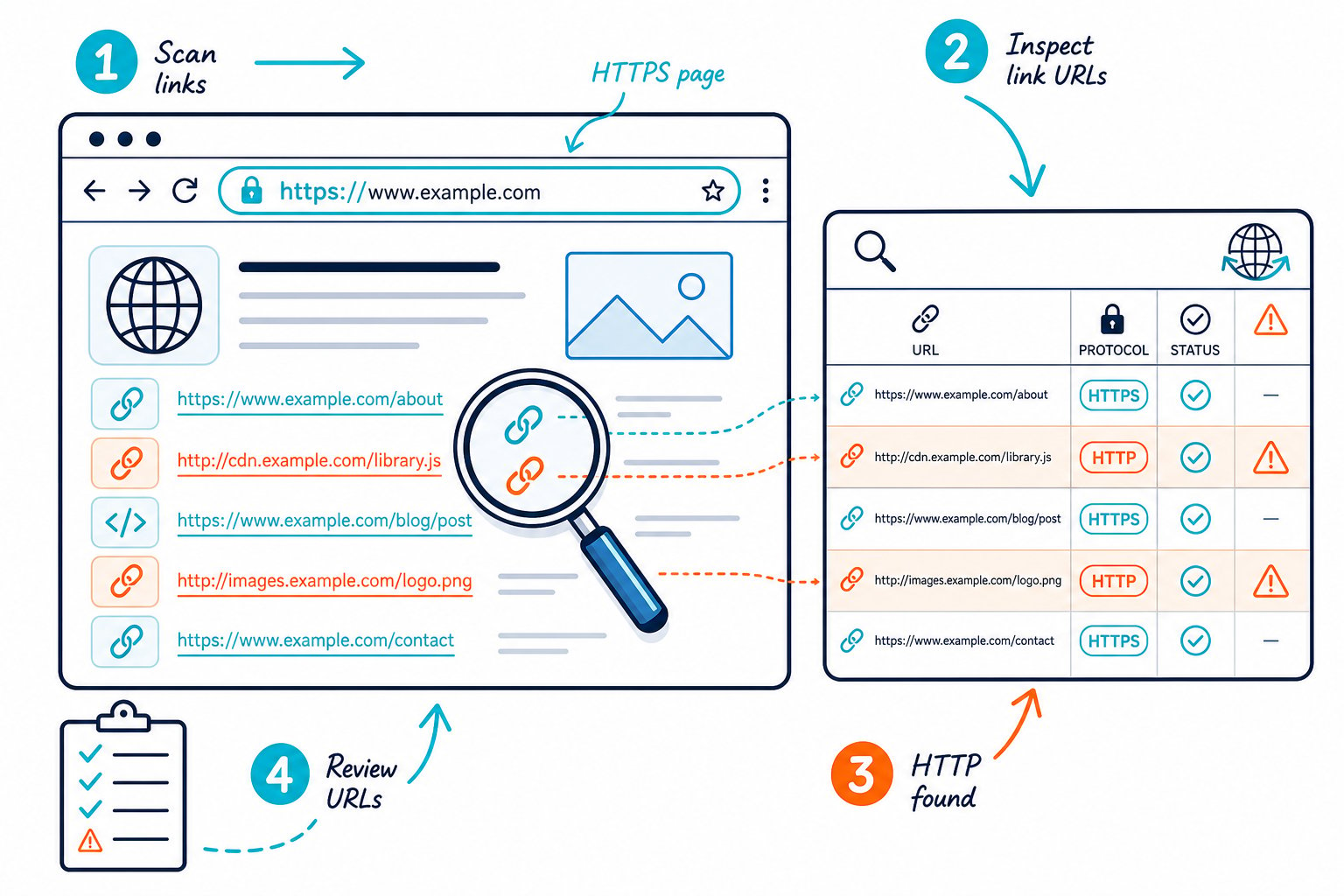
How to Find HTTP Links on an HTTPS Page starts with checking the HTML, browser requests, templates, and CMS-generated URLs. You should test both what appears in the page code and what your browser requests after JavaScript, plugins, and third-party assets load.
How to Locate Insecure URLs and Resources
You find insecure URLs by checking raw HTML and rendered browser requests, then tracing each HTTP reference to its page, template, plugin, or CMS setting. A complete site audit covers links, media, forms, scripts, stylesheets, and dynamically injected assets.
Inspect Page Links and the Href Attribute
View your page source and search for http://. Focus on each href attribute in page links, internal links, canonical tags, alternate language tags, forms, and navigation.
Check the live DOM too. JavaScript widgets and CMS blocks may inject internal links to HTTP pages after the original HTML loads. Check Page SEO helps you review live page links, canonical data, indexability, and technical signals while the page is open.
Flag links such as:
href="http://example.com/services/"src="http://example.com/image.jpg"action="http://example.com/contact/"url(http://example.com/style.css)in CSS
Check Rendered Requests for Mixed Content
Open browser Developer Tools, select Console, then reload the HTTPS page. Mixed content warnings identify HTTP resources that your browser blocked or loaded with a warning.
Next, use the Network tab and filter requests for http://. Review scripts, stylesheets, CSS fonts, images, video embeds, iframes, and tracking tools. A page may look secure while an old script, image field, or media embed still loads through the HTTP protocol.
HTTPS encrypts data sent between the browser and server, which helps protect users from interception and supports a trusted secure connection. This overview of HTTPS encryption and authentication explains why insecure page resources create a security gap.
Review Relative URLs and the Base Tag
Relative URLs such as /contact/ inherit the protocol of the current HTTPS page, so they normally resolve securely. Check the <base> tag when relative URLs resolve unexpectedly, especially on large CMS sites or migrated subdomains.
Protocol-relative URLs such as //example.com/file.js inherit the visitor’s current protocol. Replace them with full HTTPS URLs where you control the asset. Explicit HTTPS paths make your intent clear and prevent inconsistent behavior in older templates or test environments.
Audit Templates, Navigation, and CMS Output
Check global templates first. Header menus, footer links, schema fields, image libraries, page builders, and reusable call-to-action blocks can spread one bad HTTP URL across hundreds of pages.
In WordPress and other content management system platforms, inspect the site URL settings, home URL, theme files, plugin settings, and database content. Export a prioritized SEO audit report so your developer receives the affected URLs and issue types in one task list.
Fix, Redirect, and Verify Protocol Consistency
Replace every controllable HTTP reference with its HTTPS equivalent, then enforce sitewide HTTP-to-HTTPS 301 redirects. This protects users, cleans up internal linking, and gives search engines one preferred protocol version to crawl.
Replace HTTP Internal Links With HTTPS URLs
Update internal links directly in menus, body content, breadcrumbs, XML sitemaps, canonicals, and structured data. If your HTTPS page has internal links to HTTP pages, point each link to the final HTTPS URL.
Use full HTTPS URLs for canonical tags and external assets. Keep relative URLs for internal navigation when your CMS handles them consistently. Avoid leaving HTTP links in place because a 301 redirect exists. Every internal link should point straight to the preferred destination.
Update Database, CMS Settings, and Theme Files
Run a controlled search and replace for your old HTTP domain in the database. Back up your site first, then review serialized data and page-builder fields before applying bulk changes.
Update these areas:
- CMS home and site URL settings
- Theme header, footer, and template files
- Plugin settings for forms, caching, and media
- Hard-coded URLs in CSS, JavaScript, and schema markup
After deployment, rescan priority templates and high-traffic pages. You should also check staging environments before pushing changes live, since hard-coded development URLs frequently return during redesigns.
Secure Third-Party Assets and CDN Resources
Replace HTTP CDN paths with HTTPS endpoints supplied by your provider. Review every third-party script, embedded form, chat widget, video player, and font request.
An HTTP resource on an HTTPS page creates mixed content and exposes users to security vulnerabilities, including man-in-the-middle attacks. Browser warnings damage user trust, especially on checkout, login, lead-generation, and account pages.
Use 301 Redirects as a Safety Net
Configure permanent 301 redirects from every HTTP URL to its matching HTTPS version. Your redirect rule belongs on the HTTP listener or port 80 configuration, which prevents HTTPS requests from looping back into another redirect rule.
Test the full redirect path for both www and non-www variants if your site uses them. A proper HTTP-to-HTTPS redirect should reach one final HTTPS URL with no chains, loops, or protocol changes.
Re-Crawl Pages and Monitor Search Signals
Re-crawl your corrected pages, make sure the browser’s mixed content warnings have cleared, and check that canonical tags point to HTTPS pages. Then use Google Search Console to watch index coverage, impressions, clicks, click-through rate, and average position after deployment.
Track your most important organic search traffic pages separately for several weeks. If you changed a large number of URLs or templates, compare the same days of the week before and after the release.
For quicker live checks, Download the Check Page SEO Chrome extension and audit links, canonicals, indexability, scripts, images, and page-level technical SEO signals while viewing each page.