A missed noindex directive can remove a valuable URL from organic search, while a missing directive can expose pages that should stay out of search results. You need to check both the code visible on the page and the HTTP response sent by the server.
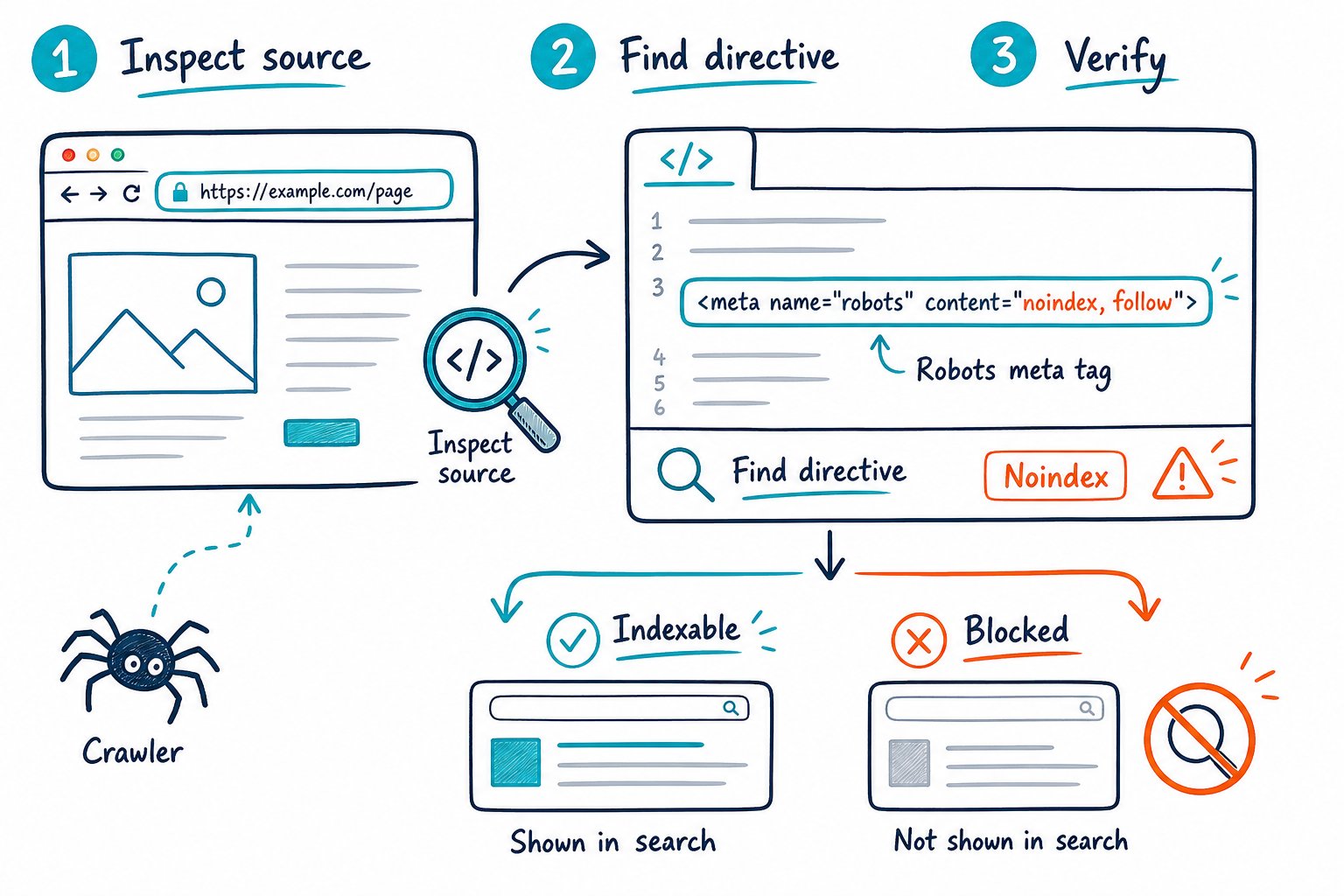
You can check robots meta tags and noindex directives by reviewing the live HTML, rendered HTML, bot-specific rules, and X-Robots-Tag response headers before confirming the URL in Google Search Console. A complete SEO audit should also check whether robots.txt allows crawling, because search engine crawlers must fetch a page before they can process its noindex instruction.
Inspect the Page, Headers, and Bot-Specific Rules
You need four checks for a reliable indexability verdict: HTML head tags, rendered HTML, HTTP headers, and crawler-specific directives. A page might look indexable in its source code while a CDN configuration or server rule quietly sends X-Robots-Tag: noindex.
What to Look for in the HTML Head and Rendered HTML
Open the page source and search for robots, googlebot, bingbot, and noindex. Start with the <head> area and look for code such as:
<meta name="robots" content="noindex, follow">
Also inspect the rendered HTML in your browser’s developer tools. JavaScript, an SEO plugin, or a template change can add meta robots tags after the initial HTML loads. This happens often on staging environments and CMS-driven archive pages.
Check Page SEO scans the active page’s live HTML, including indexability, canonical tags, meta robots directives, and related technical SEO signals. Use it on a logged-in CMS preview or staging site where a cloud crawler cannot get access.
How to Read Meta Robots and Googlebot Directives
A standard robots meta tag applies to cooperative crawlers:
index, followpermits indexing and link crawling. These are the default behaviors.noindex, followrequests removal from the search index while allowing crawlers to process links.noindex, nofollowblocks indexing and asks crawlers not to follow page links.nonemeansnoindex, nofollow.allmeansindex, follow.
A meta name="googlebot" tag applies specifically to Googlebot and can override the broader meta name="robots" instruction for Google. Check for crawler-specific directives for Bingbot too when Bing visibility matters.
Conflicting commands such as index, noindex create an unsafe setup. Meta robots directive guidance notes that behavior is undefined when mutually exclusive values appear together. Treat that as a deployment defect and remove the conflict.
Why X-Robots-Tag Headers Need a Separate Check
X-Robots-Tag is an HTTP response header, so you will not find it in the HTML head or page source. Inspect it through your browser’s Network panel, a header checker, or curl -I https://example.com/page/.
Look for a response like:
X-Robots-Tag: noindex, nofollow
Headers are especially useful for non-HTML files, including PDFs, images, and other assets where you cannot place a robots meta tag. They can also create sitewide trouble when Apache rules, CDN configuration, or reverse-proxy settings apply noindex across a directory.
How to Confirm the Final Indexability Verdict
Confirm that the final URL returns a successful HTTP response, has no noindex in its HTML or headers, and is crawlable in robots.txt. Then inspect the canonical URL. A self-referencing canonical supports the page’s indexing case, while a canonical pointing to another URL signals duplicate-content consolidation.
Use Google Search Console’s URL Inspection tool after completing the technical checks. It shows Google’s reported indexing state and can surface a noindex finding that came from rendered HTML or an HTTP response. Pair that review with a technical page audit when you are also checking metadata, headings, content depth, and internal links.
Resolve Conflicts and Validate Indexing Changes
Fix indexability issues by aligning crawl access, robots directives, canonicals, sitemaps, and internal links with the page’s intended role. A clean configuration gives search engines one consistent instruction for each URL.
Why Robots.txt Cannot Replace a Noindex Directive
Robots.txt manages crawling, while noindex manages indexing. If robots.txt disallows a URL, Googlebot may not crawl the page and therefore cannot read its meta robots tag or X-Robots-Tag header.
A blocked URL can still appear in search results when other pages link to it. For intentional de-indexing, allow crawling and apply noindex until the URL drops from the search index. Google’s noindex implementation guidance confirms that crawlers need access to detect the directive.
Use robots.txt to control crawl budget on low-value parameter paths or filter combinations. Use noindex for thank-you pages, internal search results, thin archive pages, and duplicate URLs that should remain accessible to users.
Which Directives Limit Search Appearance or Link Handling
Use directive controls for a clear purpose:
nofollowasks crawlers not to follow page links. It does not replacerel="nofollow"on individual links.nosnippetblocks text snippets in search results.max-snippet,max-image-preview, andmax-video-previewset preview limits.noimageindexlimits image indexing association for the page.noarchivelimits cached versions.unavailable_aftersets a date after which the page should leave search results.
These directives affect search appearance and crawler behavior. They are separate from ranking signals such as PageRank, content relevance, internal links, and canonical consistency.
Where Unintended Noindex Rules Commonly Come From
You will most often find accidental noindex rules after a site migration, template release, or SEO plugin setting change. Staging sites frequently use a global noindex, and that setting can slip into production with the same template.
Check these locations during your technical SEO audit:
- CMS page-level settings and SEO plugin defaults
- Global header templates and conditional code
- CDN, Apache, Nginx, or application response-header rules
- JavaScript that injects rendered HTML tags
- PDF and non-HTML file delivery rules
- Page-type rules for categories, tags, pagination, and internal search results
Also review XML sitemap entries. Your sitemap should list intended indexable pages, not URLs with noindex, blocked crawling, redirect chains, or canonical tags pointing elsewhere.
How to Test Fixes After a Deployment or Migration
Test the exact production URL after deployment, including the preferred protocol, hostname, trailing-slash format, and query-free canonical URL. Check the HTTP response header first, then the page source, and finally the rendered HTML.
Run this sequence:
- Confirm the page returns
200 OKand has no unintendedX-Robots-Tag. - Search the page source and rendered HTML for
noindex,none,googlebot, andbingbot. - Verify that robots.txt allows the relevant crawler to fetch the URL.
- Confirm the canonical tag points to the intended canonical URL.
- Check that key internal links point directly to that URL.
- Submit the URL for validation through URL Inspection once the fix is live.
- Monitor Search Console indexing issues and impressions after Google’s next crawl.
For recurring QA, use Check Page SEO before launch and after template releases to audit live indexability signals, then export the findings for developers. Download the Check Page SEO Chrome extension to check the page open in your browser, including pages behind login walls and staging environments.