A broken social preview costs you control of the title, image, and description people see before they click your link. How to Check Open Graph, Facebook and Twitter/X Card Tags fast: inspect the live HTML, test the final public URL, and refresh each platform’s cached preview after a fix.
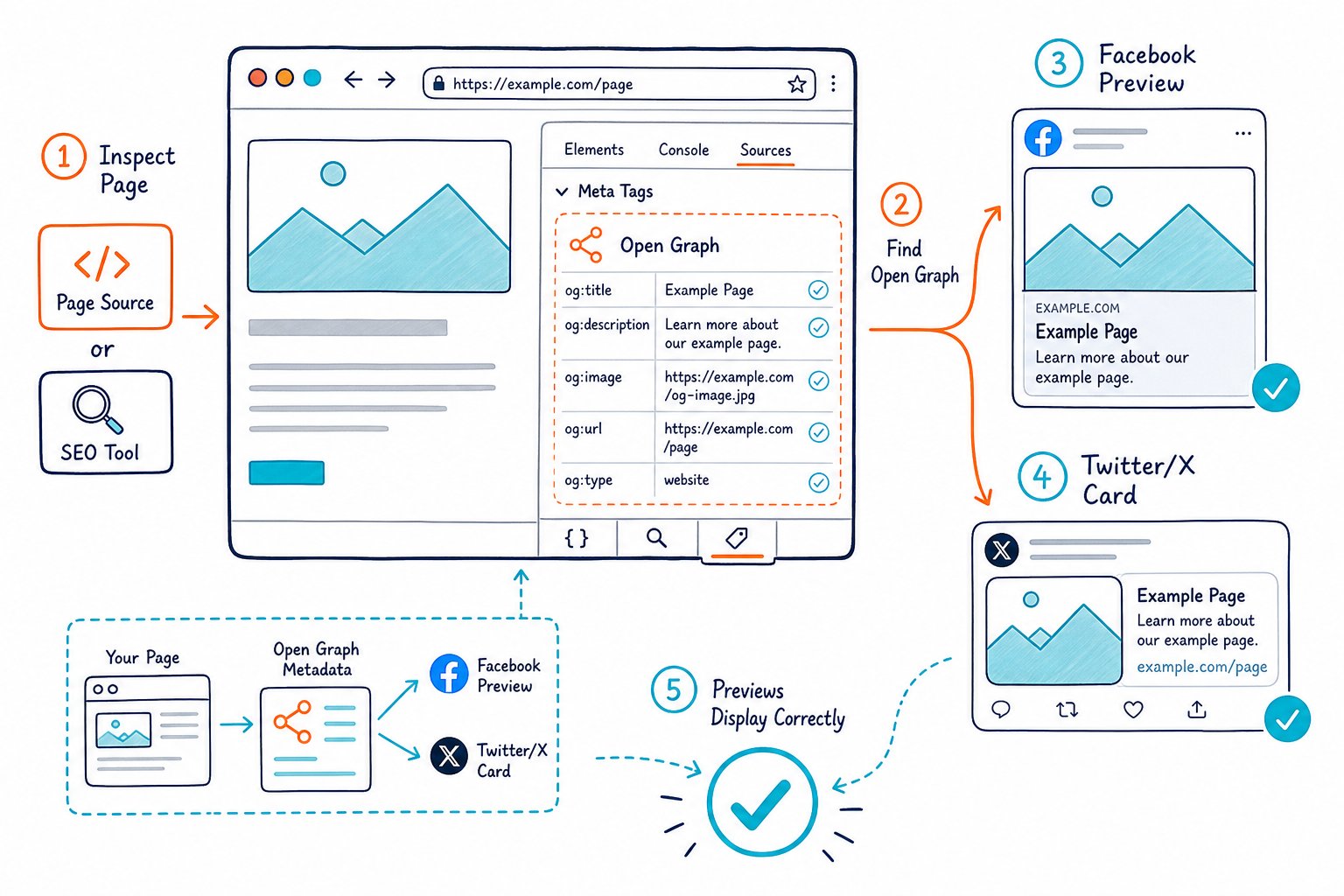
Your website’s social sharing metadata affects link preview quality across social media platforms and messaging apps. A quick on-page SEO check gives you a clean social card preview, helps protect click-through rate, and catches missing image or URL tags before you publish a campaign.
What Social Crawlers Read From Your Page
A social crawler reads HTML meta tags from your public page and uses them to build a link preview. Facebook, LinkedIn, messaging apps, and plenty of other platforms prioritize Open Graph tags.
Twitter/X uses Twitter Card tags and may fall back to Open Graph data. In other words, it’s worth getting both sets right instead of hoping one will cover everything.
Your core social metadata should match the page’s purpose, title tag, meta description, and canonical URL. Keep the primary fields consistent so platforms receive one clear version of the page.
Which Open Graph Tags Are Essential?
Use these og tags on every indexable page:
og:titlesupplies the social sharing headline. It may match your HTML title tag, though a more direct, share-friendly version often performs better.og:descriptionprovides the preview text. Write it as a concise reason to click, not a keyword list.og:imagedefines the share image shown in the card.og:urlidentifies the preferred shared URL. Set it to the same clean URL as your canonical URL.og:typedescribes the page, such aswebsite,article, orproduct.og:site_nameidentifies your brand or website.
A mismatch between og:url and your canonical URL creates avoidable confusion across sharing and SEO systems. Use your final clean URL without tracking parameters.
How Twitter Cards Differ From Open Graph Tags
Twitter Cards give Twitter/X platform-specific instructions. The key tag is twitter:card, which selects the card format.
Use summary for a compact preview with a smaller image. Use summary_large_image when your page has a strong visual asset and you want a larger social card preview.
You can also set twitter:title, twitter:description, and twitter:image. These fields override Open Graph values on Twitter/X, so only add separate Twitter Card tags when you need a different message or image treatment.
Keeping both sets aligned reduces deployment errors and saves you from chasing a mysterious preview problem later.
When Should You Use Website, Article, or Product Types?
Set og:type to match the page you are sharing:
- Use
websitefor homepages, service pages, category pages, and SaaS landing pages. - Use
articlefor blog posts, guides, news content, and editorial pages. You can addarticle:published_timeandarticle:authorwhen those details are available. - Use
productfor product pages where the page is focused on a specific item.
Your social type does not replace structured data or directly change Google search results. It helps a social crawler classify and render the shared page accurately.
A Repeatable Validation and Debugging Workflow
A reliable workflow checks the rendered HTML, the public URL response, the image file, and each platform’s cached preview. This prevents the common failure where your CMS shows correct metadata while a crawler receives an older page version, blocked image, or incorrect canonical.
Check Page SEO helps you inspect Open Graph metadata, Twitter Cards, canonical tags, indexability, and other live-page signals from the browser. You can also check competitor meta tags and headings when you need to compare how competing pages structure their share data.
Inspect the Live HTML and Final Public URL
Open the final public URL in an incognito browser window and inspect the rendered <head> area. Confirm that each og: and twitter: tag appears once, uses the intended value, and points to absolute HTTPS URLs.
Pay close attention to Next.js and other JavaScript frameworks. Your browser may render tags after scripts run, while social crawlers require metadata in the server-rendered HTML.
View page source and compare it with the live DOM when a preview fails. That small check often reveals the culprit.
Check for these issues:
- A staging domain inside
og:urlorog:image - UTM,
gclid, orfbclidparameters in the canonical URL - Relative image paths such as
/images/share.png - Duplicate meta tags produced by a CMS plugin and a theme
- A
noindexor authentication wall blocking preview generation
Validate the Share Image and Accessibility Details
Use a 1200 x 630 pixels image with a 1.91:1 aspect ratio for a dependable Open Graph image. PNG and WebP files work when the server delivers them publicly over HTTPS, though you should test the exact file URL before release.
Set og:image:width and og:image:height to match the real file dimensions. Add og:image:alt so the social card has accessible image context.
A good share image is readable at small sizes. Avoid tiny text, crowded screenshots, or images where the key message sits near the edge.
If your image sits behind a CDN rule, login wall, hotlink block, or bot restriction, the social crawler will fail even when the image loads for you. That’s one of those bugs that looks fine in your browser right up until sharing day.
Compare Platform-Specific Preview Behavior
Facebook, Twitter/X, LinkedIn, WhatsApp, Slack, Discord, Telegram, and iMessage each handle link unfurling a little differently. Start with the shared Open Graph fields, then test platforms where your audience shares links most.
Use Facebook Sharing Debugger for Facebook preview generation and cache inspection. Use LinkedIn Post Inspector for LinkedIn.
For Twitter/X, test your twitter:card output with an X Card Validator before scheduling a post.
A platform preview is also a practical quality check. If your description reads like a clipped meta description or your image crops poorly, revise the metadata before promoting the URL.
Your content readability SEO test helps you catch weak page copy that often gets reused in social descriptions.
Refresh Cached Previews After Deployment
A successful deployment does not make platforms fetch your new tags right away. Social networks cache sharing metadata, so old titles and images can stick around even after you fix the HTML.
Follow this sequence after every metadata update:
- Publish the change and confirm the final public URL returns the new tags.
- Confirm that the
og:imageURL loads directly without login prompts, cookies, or redirect loops. - Run the URL through Facebook Sharing Debugger and request a fresh scrape.
- Check LinkedIn and Twitter/X previews for pages tied to active campaigns.
- Send a test link in Slack, Discord, or WhatsApp if those channels are part of your launch.
For a quicker pre-publish audit, Download the Check Page SEO Chrome extension and review the live Open Graph, Twitter Card, canonical, and technical metadata on the page you have open.