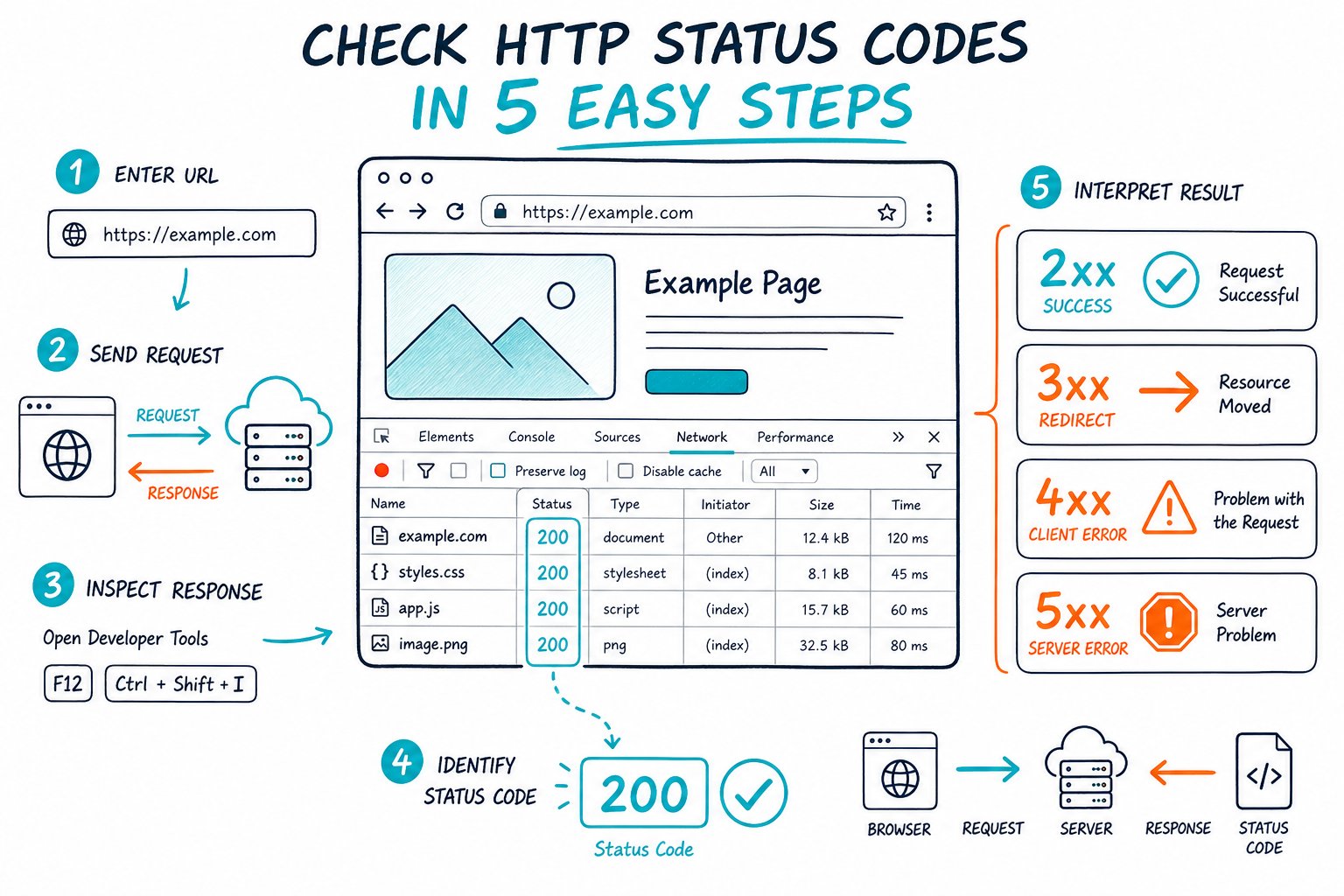
Every page request produces an HTTP response from a web server. The HTTP status code tells you whether that request succeeded, redirected, failed, or was blocked. You can check HTTP status codes on a web page through browser tools, command-line requests, online checkers, and full-site crawls.
For SEO professionals and webmasters, server responses are a quick health check. Confirm that important URLs return the intended code to visitors and crawlers, then fix broken paths, weak redirects, and server failures before they affect indexing or user journeys.
Ways to Inspect a Page Response
Use the method that fits the job: browser inspection for a live page, an external HTTP status checker for a quick outside view, command-line checks for repeatable validation, and crawling software for many URLs.
Each method reveals different details, including response headers, response time, redirect behavior, and differences between HTTP and HTTPS requests.
Use Chrome DevTools to Inspect the Main Document Request
Open the page, press F12, select Network, then reload the page. Click the request with Type set to document to see the main HTML request.
Check the Status Code, Headers, and timing data. The response header panel shows HTTP response headers such as location, cache-control, content-type, and CDN-related headers.
Use Disable cache while DevTools is open. Cached responses can hide a redirect or server issue you need to catch with a fresh request.
Use an Online URL Status Checker for an External Test
An online URL status checker gives you a view from outside your browser session. That’s useful when your browser is logged in, serving a cached page, or sitting behind a corporate network rule.
A tool such as this HTTP viewer for response headers and timing lets you inspect status codes, headers, and timing for a submitted URL. Check whether the tool follows redirects, because an SEO audit needs to capture both the first response and the final destination.
Use cURL or Server Logs for Repeatable Technical Validation
Use cURL when you need a clean HTTP request that’s easy to repeat and document:
curl -I https://www.example.com/page/ The -I flag requests headers only. Add -L to follow redirects:
curl -I -L https://www.example.com/old-page/ For crawl blocks or access differences, send a Googlebot user agent and compare the result with a browser request. Your server logs then show the exact request, response code, IP activity, and response time recorded by your infrastructure.
When to Use Screaming Frog for Bulk URL Checks
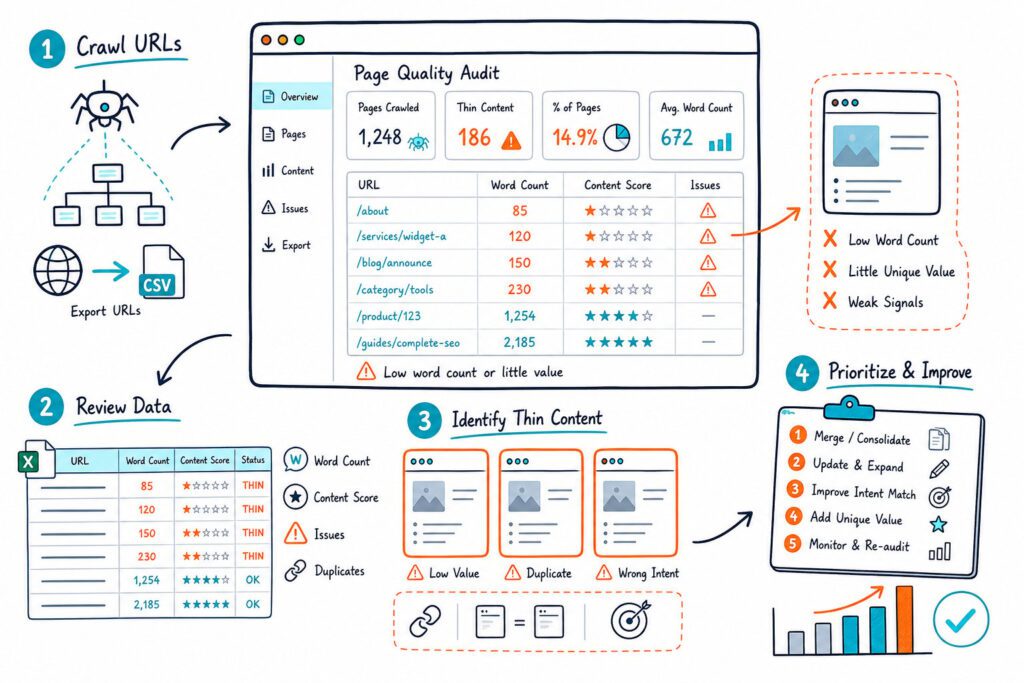
Use Screaming Frog when you need to validate hundreds or thousands of internal URLs at once. Crawl the site, filter by response code, and review the 3xx, 4xx, and 5xx groups.
Export affected URLs with their inlinks. You’ll get a practical repair list showing where broken links and redirecting URLs are referenced across the site.
How to Interpret Results and Prioritize Fixes
Prioritize status codes by their impact on valuable pages, crawl access, and internal linking. A 500 Internal Server Error on a high-traffic landing page needs attention much sooner than an old 404 with no links or search visibility.
Start with server errors, then fix broken links and redirect chains. Review intentional access restrictions after that.
What Do 200 OK, 301, 404, and 500 Responses Mean?
A 200 OK confirms that the web server delivered the requested resource successfully. Your indexable pages should return 200 OK and contain the intended canonical, content, and robots directives.
A 301 Moved Permanently sends users and crawlers to a new URL. Use it when a page has permanently moved, then update internal links to point straight to the final URL.
A 404 Not Found means the requested URL does not exist. Fix 404 errors by restoring a valuable page, adding a relevant 301 redirect, or removing broken internal links.
A 500 Internal Server Error signals a server-side failure. Check application logs, plugin changes, database errors, hosting limits, and recent deployment records.
How to Test Redirect Chains and Final URLs
Test both the initial URL and the final URL. Record every hop, each status code, and the location response header.
A clean permanent move looks like this:
http://example.com/page/ → 301 → https://www.example.com/page/ → 200 Redirect chains add extra requests and delay access to the final page. Replace old redirect targets so each known URL reaches its intended final URL in one hop where possible.
How to Investigate 403 Responses, CDN Rules, and Server Issues
A 403 status code means the server refused access. Check file permissions, firewall rules, authentication settings, IP blocks, rate limits, and security plugins.
CDN rules can also block valid visitors or crawlers. Compare requests from your browser, an external checker, and a Googlebot user agent. Review CDN firewall events and cache rules when one client receives a 403 while another receives 200.
For repeated server errors, test website availability at different times and inspect server response times. Spikes after deployments often point to code, database, or upstream hosting issues.
How HTTP Headers, Robots.txt, and Googlebot Affect SEO
HTTP headers shape how browsers and crawlers handle a response. Review redirects, canonicals delivered through headers, caching behavior, and X-Robots-Tag directives.
Robots.txt controls crawl access, while a status code reports the result of an HTTP request. A page can return 200 OK and still be blocked in robots.txt, or return 403 before Googlebot reaches its content.
Check Googlebot access on key templates after migrations, CDN changes, security updates, and large-scale URL rewrites. You should also inspect indexability signals in the same audit, including canonicals and meta robots tags.
What to Recheck After Fixing Errors
After deploying a fix, test the original URL, every redirect hop, and the intended final URL. Make sure internal links point directly to live 200 pages and that canonical tags match the destination you want indexed.
While you’re viewing the page, use Check Page SEO to review its HTTP status, indexability signals, canonical tags, links, and technical score. For repeatable checks during releases, Add to Chrome for free and rerun the audit after each change.