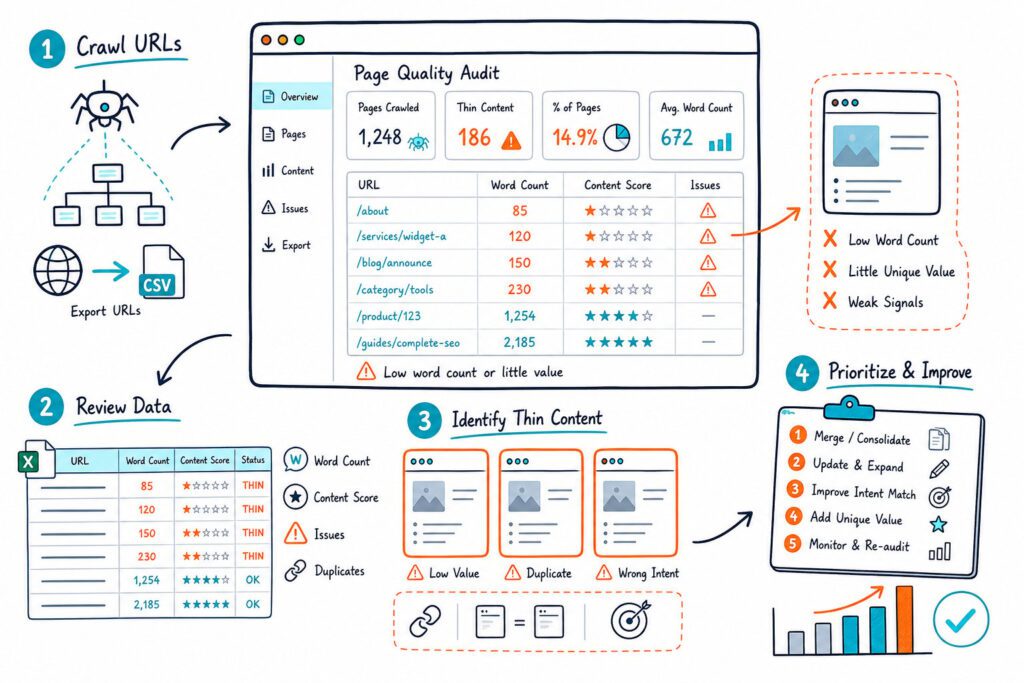
A reliable H1 Tag Checker shows you the page’s main heading, where it appears, and whether it supports the page’s primary topic. You can check the H1 on any page by inspecting its rendered heading structure, then fix missing, empty, duplicated, or poorly targeted headings.
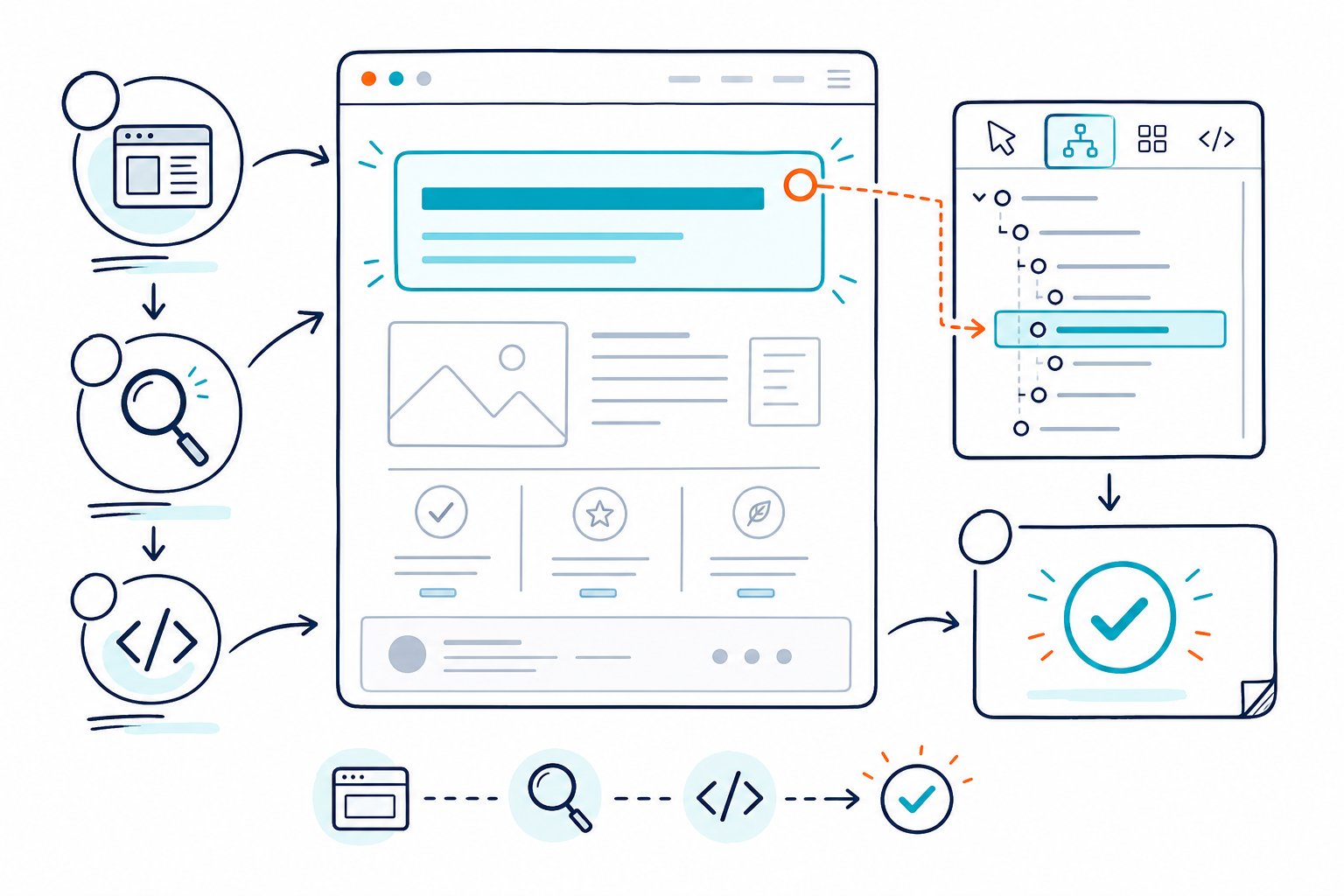
Your H1 is the page-level heading that helps visitors, screen readers, and search engines identify the subject quickly. It should describe the page clearly, reflect the target keyword and search intent, and lead into a logical heading structure that supports rankings and usability.
How to Inspect H1s in Source, DOM, and Crawled Pages
Check the rendered H1 first, then compare it with raw HTML and crawler output when the results don’t line up. Each method shows a different layer of the page: static markup, the browser-rendered DOM, or what an external SEO tool can reach at the page URL.
What an H1 Checker Should Report
A useful H1 tag checker should show:
- H1 count
- H1 text and character length
- Empty H1 tags
- Duplicate H1 text
- The heading outline from H1 through H6
- Hidden headings or headings injected by JavaScript
- Whether the H1 includes your primary topic naturally
Check Page SEO reviews heading hierarchy, duplicate or missing H1s, weak H2 coverage, and structural gaps from the live page in your browser. That comes in handy when you need to inspect a CMS preview, a React page, or a page behind login access.
Check Static Markup With View Source and Ctrl+U
For a public URL, press Ctrl+U in Chrome to open view source. Search for <h1 using Ctrl+F, then check the HTML source for the opening and closing H1 tags.
This works well for static HTML, WordPress pages, and server-side rendered pages. On the flip side, it can miss headings added after load by React, Vue, tag managers, personalization tools, or other client-side scripts.
Review the H1 text in context. A clean result looks like this:
<h1>Residential Roof Repair in Austin, TX</h1> Also check for empty markup such as <h1></h1> or an H1 containing only a site logo, brand name, or decorative text.
Inspect the Rendered DOM With Browser DevTools
Use browser DevTools when the visible page doesn’t match view source. Right-click the page heading, select Inspect, and confirm that the rendered DOM contains an <h1> element.
The DOM is the version users and browser-based tools see after JavaScript runs. This is where you’ll find common issues such as:
- A visual page heading built from a
<div>instead of an H1 - Two H1s added by a page builder and a theme template
- An H1 hidden with CSS
- An H1 injected after the page loads
- A heading placed far below the visible opening content
Check the element’s computed CSS too. Screen-reader-only H1s can be valid when they provide a useful page label, though the visible heading still needs a clear structure for sighted visitors.
When Public URL Crawlers Miss Staging or Logged-In Pages
Public SEO tools only see pages their crawler can access. A crawler can’t inspect your staging server, password-protected CMS draft, private client dashboard, or logged-in product page without access.
Browser-based auditing gets around that problem because you open the page in your own session and inspect the live rendered HTML. This is especially useful before a launch, when an H1 error is much cheaper to fix than it is after Googlebot has crawled the page.
Use an H1 checker on the active browser tab when testing templates, product pages, local landing pages, and gated content. You’ll also avoid false positives caused by crawler blocks, cookie walls, or location-specific page changes.
Audit Templates at Scale With Screaming Frog or Semrush
For large public sites, crawlable SEO tools help you find H1 issues across hundreds or thousands of URLs. Export H1 count, H1 text, duplicate H1 values, and missing H1s, then group the results by template, folder, and page type.
Start with high-value templates: category pages, service pages, product pages, blog posts, and location pages. One repeated template issue can create the same H1 problem across the entire site.
Use a crawl to find the pattern, then inspect representative URLs in the rendered browser. Your crawl may show one H1, while the live DOM reveals a second H1 added by a personalization script or CMS component. You can also check competitor meta tags and headings to see how competing pages organize their main topic and supporting sections.
How to Diagnose and Fix Heading Problems
Fix the H1 as part of the full page structure, search intent, and accessibility experience. A strong page heading gives users a clear subject right away, while title tags and meta descriptions help earn the click before they arrive.
What to Do When an H1 Is Missing or Empty
Add one visible, descriptive H1 near the beginning of the main content when an H1 is missing. Use the page’s primary target keyword where it reads naturally, then state the specific benefit, location, product, or question the page answers.
For example, use Emergency Plumbing Repair in Denver for a local service page. Avoid vague labels such as Welcome, Services, or Learn More.
An empty H1 commonly comes from a broken CMS field, a page-builder module, or conditional template logic. Fix the field at the template level when the issue affects many pages, then run a fresh SEO audit on the affected URLs.
Are Multiple H1s a Problem?
Multiple H1 tags don’t create an automatic ranking penalty in modern HTML5. Search engines can process pages with more than one H1, especially when templates use article, section, or product components.
Still, one clear primary H1 gives you a cleaner document outline and makes the page intent easier to verify. Multiple H1s become a problem when they compete for the page topic, repeat the same text, label unrelated modules, or come from hidden template elements.
Keep one primary H1 for most commercial pages, service pages, articles, and landing pages. Treat extra H1s as a template-quality issue unless each one has a clear semantic purpose. Don’t use an H1 for a site logo, navigation label, footer heading, or promotional banner.
How to Build a Logical Heading Hierarchy
Use headings to describe the order of your content. Your H1 names the page topic. H2s divide major sections, and H3s support the relevant H2. Continue through H6 only when the content genuinely needs that much depth.
A useful pattern looks like this:
- H1: Primary page topic
- H2: Core subtopic
- H3: Detail or step
- H2: Next core subtopic
- H2: Supporting question
- H2: Core subtopic
Don’t choose heading tags based on visual size. Use CSS to change font size, weight, spacing, and color while preserving the semantic heading tag. Skipping directly from H1 to H4 creates a weak outline for screen readers and makes content maintenance harder.
How Should the H1 Relate to the Title Tag and Meta Description?
Your H1, title tag, and meta description should support the same page intent without repeating identical copy. The H1 serves users on the page, the title tag helps describe the page in search results, and the meta description gives people a concise reason to click.
For a page targeting “project management software for agencies,” your title tag might include a benefit or qualifier, while the H1 states the central offer in plain language. Keep the primary target keyword close to the beginning when it fits naturally.
There’s no fixed H1 length or character limit. Aim for a heading users can scan quickly, then test whether it matches the page content. Long H1s often signal that a page is trying to target too many queries at once. Tighten the topic and use H2s for supporting terms.
You can pair heading fixes with a content readability SEO test when your H1 promises an answer that the body copy doesn’t deliver.
Prioritize Accessibility, Readability, and Intent Before You Recheck
Write the H1 for the visitor first. It should make the page’s purpose clear within a few seconds of arrival, improve readability, support screen readers, and help you meet practical accessibility expectations under WCAG 2.1 AA heading practices.
Match the wording to the visitor’s intent. Informational pages need direct, guide-style language, while commercial pages should name the product, service, category, or outcome. Keep the page title, H1, and visible copy aligned so users find what the search result promised.
Then recheck the live rendered page. Confirm the H1 count and review the H2 structure. Download the Check Page SEO Chrome extension to inspect the active page’s headings and turn structural findings into clear next actions.