You can confirm whether a page serves WebP by checking the image response in browser DevTools, reviewing responsive-image markup, and testing the browser’s format support. You will learn How to Check Whether a Page Uses WebP Images without relying on a file extension or a page-source guess.
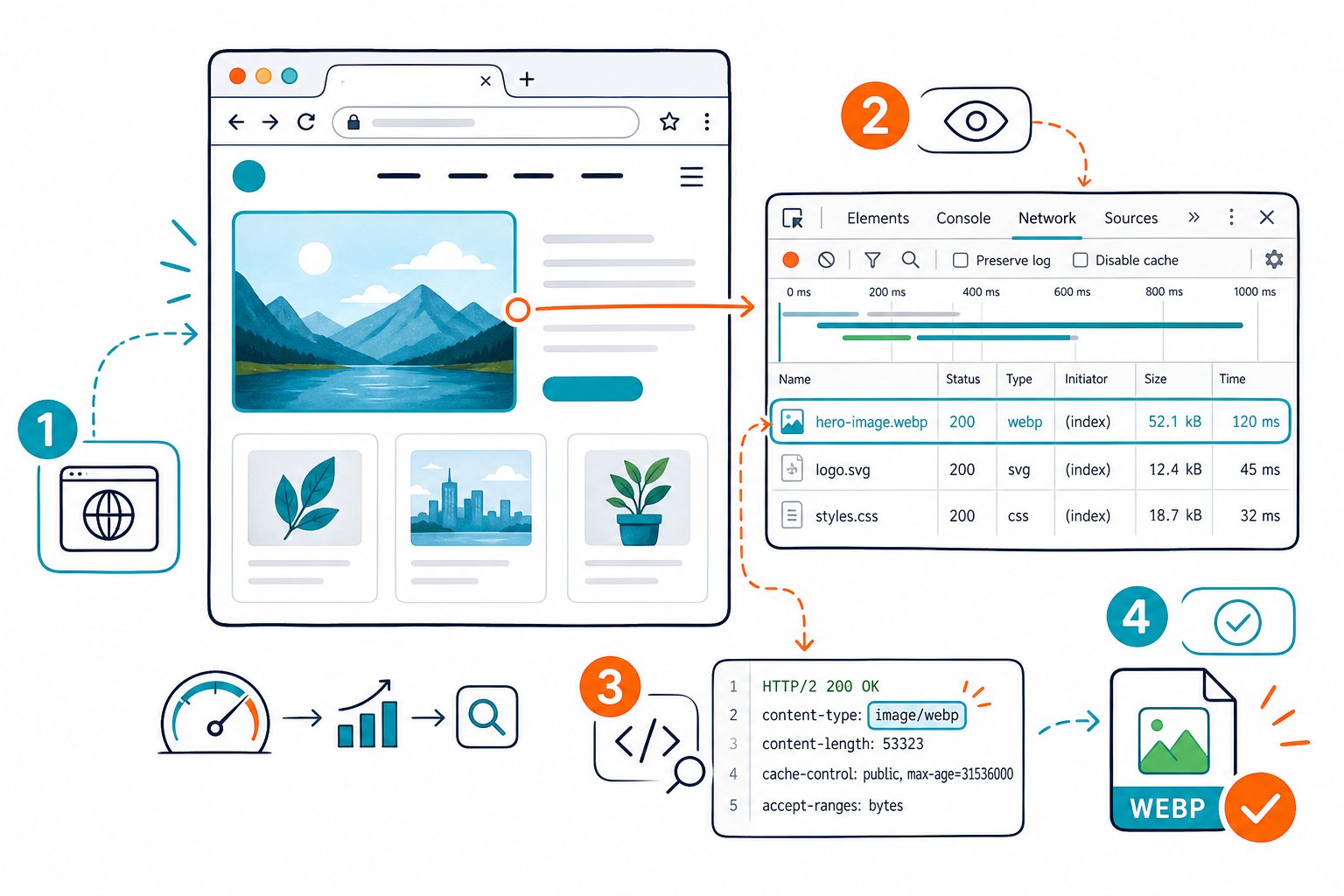
A .jpg or .png URL does not always mean the browser received a JPEG or PNG. Your CDN may rewrite the request based on browser support, or a <picture> element may select WebP behind the scenes. Checking the delivered asset gives you the file size and page-weight data that affect real visitors.
Inspect the Delivered Image, Not Just the Markup
Your browser’s Network panel provides the clearest proof of which image format reached the page. Inspect the response headers, selected responsive sources, and background-image requests.
Check Image Requests in Browser DevTools
Open DevTools, select Network, filter by Img, then reload the page. Click a request and review its Content-Type response header.
image/webpconfirms WebP delivery.image/avifconfirms AVIF delivery.image/jpeg,image/png, orimage/gifconfirms a legacy format.
Sort requests by transferred size while you’re there. Large JPEG or PNG files often add avoidable page weight, especially on image-heavy landing pages. In live audits, the response header tells you more than the visible URL because CDNs frequently rewrite image delivery.
Inspect <picture>, srcset, and Image URLs
Inspect an image element and look for <picture>, <source>, and srcset attributes. A common setup gives WebP to supported browsers while keeping a JPEG or JPG fallback:
<picture> <source srcset="/image.webp" type="image/webp"> <img src="/image.jpg" alt="Example image"> </picture> The browser selects the first supported source. Responsive srcset rules also choose different file sizes based on viewport width and pixel density. Your page may serve WebP on desktop while delivering a different asset on another device, so checking one screen is not always enough.
Account for CSS Background Images and CDN Rewrites
You should check CSS background images separately because they do not appear as <img> elements. In DevTools, inspect the element’s Styles panel, find background-image, then locate its request in Network.
A CDN may receive a JPG request and return WebP when your browser sends image/webp in its Accept header. This Accept-header delivery pattern explains why file extensions alone can produce false audit results. Check the returned Content-Type and transferred file size to see what your visitor actually receives.
Detect Support and Verify Delivery Logic
Use feature detection to find out whether your browser supports WebP, then use Network data to confirm the page served it. These checks answer different questions: one tests decoding support, while the other tests your site’s delivery setup.
Why Feature Detection Beats Browser Sniffing
Browser-name checks age badly. A browser version, embedded webview, privacy setting, or image sub-format support can change what the client accepts.
Feature detection tests the capability your page needs. For server-side logic, image requests expose browser support through the Accept header. For client-side logic, JavaScript tests whether the browser can decode a WebP asset successfully.
Test WebP Support With canvas.toDataURL()
You can test basic WebP encoding support with canvas.toDataURL():
const canvas = document.createElement('canvas'); const supportsWebP = canvas.toDataURL('image/webp') .startsWith('data:image/webp'); console.log(supportsWebP); Run this in DevTools Console. A true result shows that your browser produces a WebP data URL. It’s a quick check, though it tests canvas encoding behavior and does not prove that your CDN or CMS delivers WebP on the page.
Use Image-Based Detection for WebP Features
Use a tiny WebP data URI when you need to test image decoding. This approach checks the browser loading a WebP image, which is useful for feature-specific checks such as lossless or animated WebP.
const img = new Image(); img.onload = () => console.log('WebP supported'); img.onerror = () => console.log('WebP unsupported'); img.src = 'data:image/webp;base64,UklGRiIAAABXRUJQVlA4IBYAAAAwAQCdASoBAAEAAUAmJaQAA3AA/vuUAAA='; Image-based detection reflects the same decode path your visitors use for page images. WebP and AVIF support should each receive their own test because image formats have separate browser capabilities.
Audit Image Formats Across a Live Page
Audit every visible content image, CSS background, and lazy-loaded request after scrolling through the page. A quick check can miss below-the-fold images or assets JavaScript adds later.
Check Page SEO reviews image assets as you inspect the live page, including missing alt text and oversized files. Pairing image-format checks with an SEO text-to-HTML ratio diagnostic can reveal pages where heavy assets and bloated markup hurt performance.
Download the Check Page SEO Chrome extension to review image issues right on the page you’re auditing.