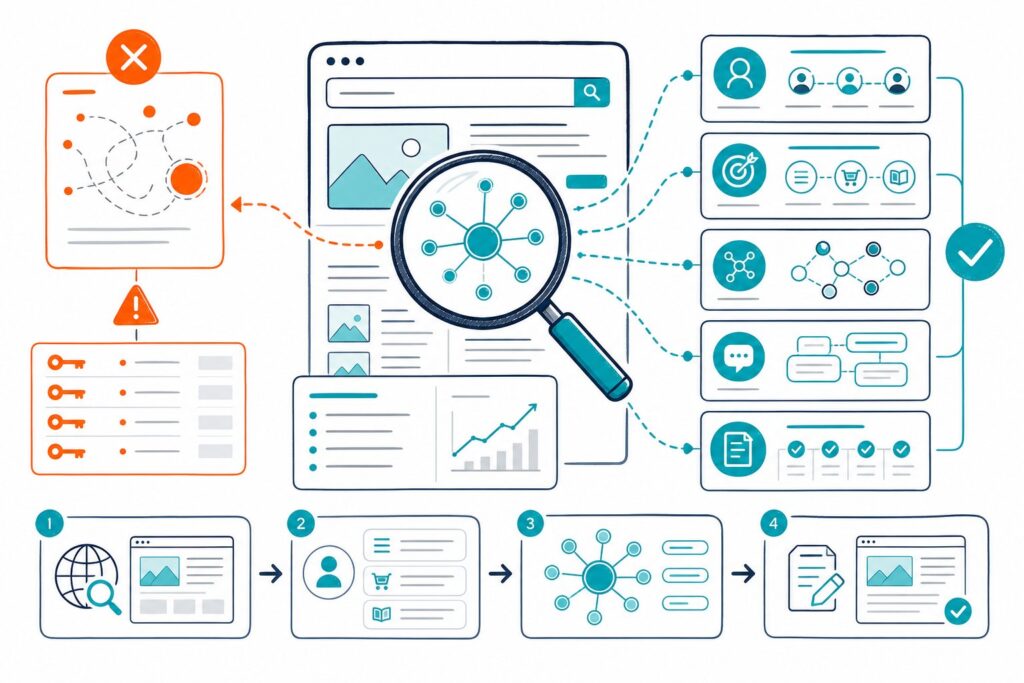
A broken link sends your visitor or crawler to a URL that no longer delivers the expected resource. You need to identify the source link, confirm its response code, and choose the right repair before the error spreads through internal navigation or content.
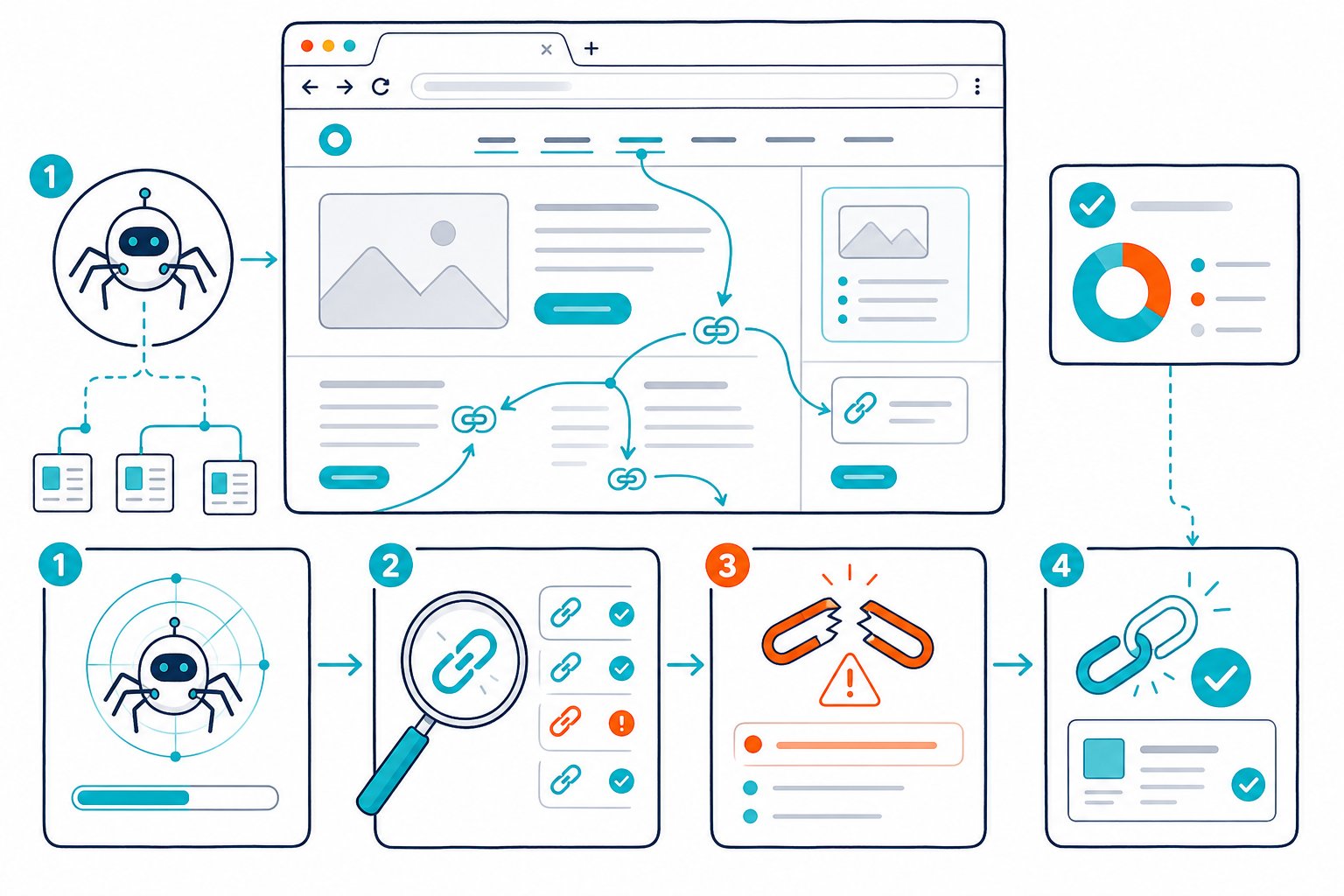
You can find broken links on a web page by extracting its live links, checking each destination’s final HTTP response, and prioritizing internal failures that block users and crawlers. A page-level check is quick enough for pre-publish QA, client audits, migrations, and high-value landing pages.
Run a Page-Level Link Audit
A reliable page audit checks every live link on the rendered page and records the source anchor, destination URL, response code, and redirect path. That gives you proof of what failed and shows exactly where the edit belongs.
A basic scan should separate true 4xx and 5xx failures from redirects, blocked destinations, mail links, phone links, and JavaScript actions. An online broken link checker may scan up to 200 links across 20 pages, which is handy for a quick public-site check.
Extract Links From Rendered HTML
Start with all <a> elements and their href attributes in the rendered HTML. This matters because menus, accordions, cookie panels, and JavaScript components may add links after the initial page load.
Capture these fields for every link:
- Source page URL
- Visible anchor text
- Raw href value
- Resolved destination URL
- Link type, such as internal or external
- Follow or nofollow status
Check Page SEO scans the active browser page, so you can inspect links on a CMS preview, a staging URL, or a page behind a login. That comes in handy when a website crawler cannot reach the same rendered content.
Check Response Codes and Final Destinations
Test each resolved URL with HTTP requests and record the final destination after redirects. A 200 OK confirms a reachable page, while a 404 Not Found identifies a missing resource.
Treat these response codes differently:
404 erroror other 404 errors: the page is missing.403 Forbidden: access is blocked, so verify whether users and Googlebot face the same restriction.410 Gone: the resource was intentionally removed.500 Internal Server Errorand other 5xx errors: the server failed and needs technical review.- 3xx responses: the link works through a redirect, though the source URL may need updating.
Don’t mark a URL as broken after one failed request. Rate limiting, bot protection, and temporary server faults can create false positives. Recheck failures from a normal browser session when the destination has real business value.
Separate Internal, External, and Non-HTTP Links
Internal links point to pages on your domain. External links lead to another domain. Both deserve a look, although broken internal links usually come first because you control the repair and they shape crawl paths.
Exclude non-HTTP links from your broken-link list:
mailto:linkstel:linksjavascript:links- Fragment links such as
#pricing - Download or protocol-specific links that need separate validation
For fragment links, test whether the target ID exists on the destination page. A page can return 200 OK while its in-page anchor fails, leaving users stranded in the wrong spot on a long page.
Validate JavaScript-Rendered Links and Access-Restricted Pages
JavaScript-rendered links need browser testing. A raw HTML tool may miss links inserted by React, Next.js, Vue, or a tag manager after load.
Open the page, wait for interactive elements to load, then inspect navigation, tabs, filters, and modal CTAs. In audits, hidden mobile menus and footer widgets are frequent homes for stale URLs because teams often update desktop templates first.
Access-restricted pages need context. A 403 Forbidden link can be valid for signed-in users, yet it becomes a failure when public visitors encounter it. Test as the intended audience, then confirm the page’s robots directives and indexability.
Choose Between Browser Checks and Site Crawlers
Use browser checks for individual URLs, live QA, competitor pages, staging environments, and login-protected content. A site crawler is better for broad discovery across public URLs, especially after a migration or major navigation change.
Tools such as Screaming Frog, Ahrefs, Semrush, Sitechecker, and a W3C link checker each use different crawl rules and request behavior. Results can vary when a server rate-limits requests or blocks a crawler user agent.
For a quick review of the page in front of you, install the Check Page SEO Chrome extension. You can inspect internal links, external links, and broken links while reviewing the live page, then add the findings to your execution workflow.
Prioritize and Fix Link Failures
Fix link failures based on user impact, crawl importance, link equity, and the value of the destination page. A broken internal link in your main navigation deserves attention before an old external citation on a low-traffic archive page.
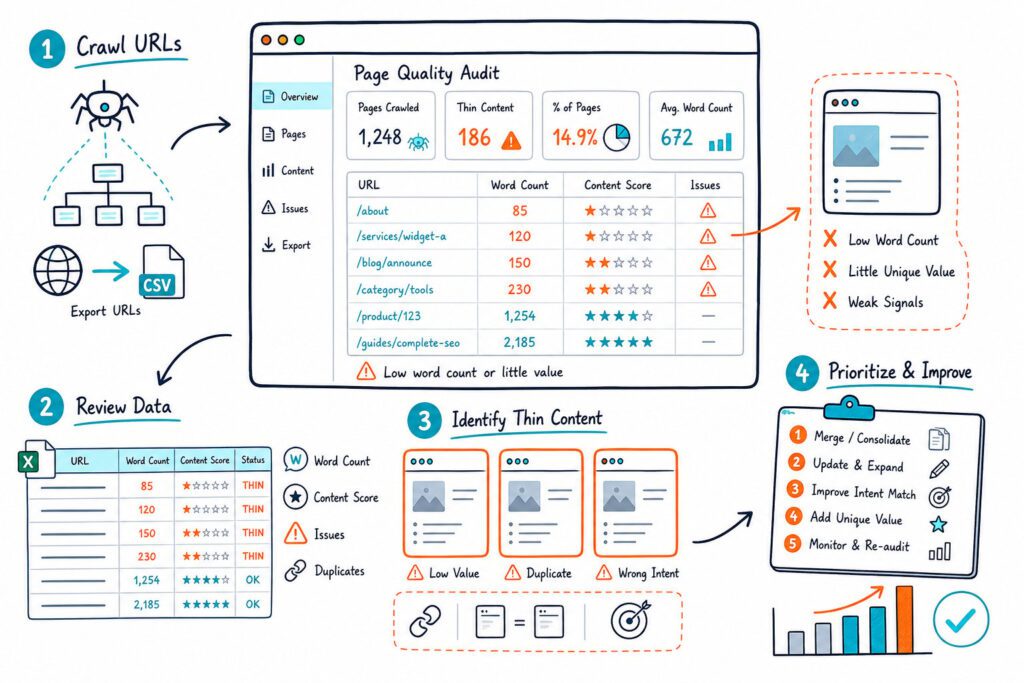
Your repair list should include the source URL, anchor text, failed destination, response code, recommended action, owner, and completion date. For client work, link findings fit naturally into SEO audit reports that assign priorities to content and development teams.
Which Broken Links Need Fixing First?
Prioritize broken internal links on high-traffic pages, navigation templates, conversion paths, XML sitemap URLs, and pages with strong backlinks. These failures affect many visitors and can prevent crawlers from reaching important content.
Use this order:
- Internal broken links in navigation, breadcrumbs, primary CTAs, and key templates.
- Internal 404 pages with backlinks, rankings, impressions, or strong internal links.
- Broken external links supporting claims, product pages, documentation, or conversion steps.
- Redirect chains and outdated redirected URLs.
- Low-value archive links with no traffic or SEO role.
Check Google Search Console for pages receiving impressions and clicks before changing URLs. A URL with search visibility needs a controlled repair, including a redirect and updated internal links.
Fix Internal 404s Without Losing Link Equity
When an internal link leads to a 404 page, update the source link to the closest relevant live URL. If the dead URL has backlinks or receives visits, add a 301 redirect to the most relevant replacement page.
Avoid redirecting every removed page to the homepage. That creates a poor user experience and sends unclear relevance signals. If no relevant replacement exists, serve a helpful 404 page and remove internal links pointing to it.
Check the redirect after deployment. Confirm that the old URL resolves in one hop, the new page returns 200 OK, and its canonical points to itself. This protects the PageRank and link equity flowing through the repaired path.
Replace or Remove Dead External References
A broken external link weakens the usefulness of your page when it supports a key claim, a cited study, or a resource your reader needs. Find a current, credible replacement that supports the same point, then update the anchor text if the destination has changed focus.
Remove the link when no suitable page exists. Keep the surrounding statement only when you can support it through your own evidence or another valid reference.
Don’t use external broken links as an excuse to add unrelated commercial URLs. Your outgoing links should serve the reader’s task and preserve the integrity of the page.
Update Redirected URLs and Eliminate Redirect Chains
A redirected URL is reachable, though it still creates an extra request. Update internal links to the final 200 OK destination, especially in templates, navigation, and pages with many internal links.
Map each redirect path before making changes:
- Source URL
- First redirect
- Final URL
- Final response code
- Redirect type
A clean path uses one redirect at most. Redirect chains slow users, complicate crawl processing, and make future migrations harder to manage. If a URL loops, remove the loop before search engines repeatedly encounter it.
Recover Value From Broken Backlinks
Broken backlinks point from another site to a URL on your domain that no longer works. These links can pass value again when you restore the page or add a relevant 301 redirect.
Use Google Search Console, backlink data, and server logs to locate valuable broken pages. AhrefsBot data may reveal links that don’t appear in Search Console, though you should verify the linking page and destination before acting.
If the old page covered a topic you still serve, rebuild it with an improved version. The Wayback Machine helps you review past page content, old title tags, and historical URL purpose before selecting a replacement.
This process also supports broken link building. You can identify dead external resources on relevant sites, create a better replacement on your own domain, and contact the site owner with a useful update.
Monitor Link Health After Migrations and Content Changes
Run link checks before launch, immediately after launch, and again once search engines have recrawled key pages. URL migrations, CMS changes, deleted categories, and revised page slugs create the biggest risk of widespread internal 404s.
Keep a recurring audit schedule for key templates and revenue pages. Test your XML sitemap URLs, canonical targets, navigation links, footer links, hreflang references, and major content hubs after every release.
For active pages, pair link checks with work to optimise existing web page content. A repaired link path, up-to-date anchor text, and a destination that delivers on the click’s promise give users a cleaner route to the information or conversion page they expected.