A page with multiple H1 tags is usually easy to fix once you identify which headings are visible, generated by a template, or injected after the page loads. You will learn how to find multiple H1 tags and whether they matter, then decide which H1 issues are worth fixing.
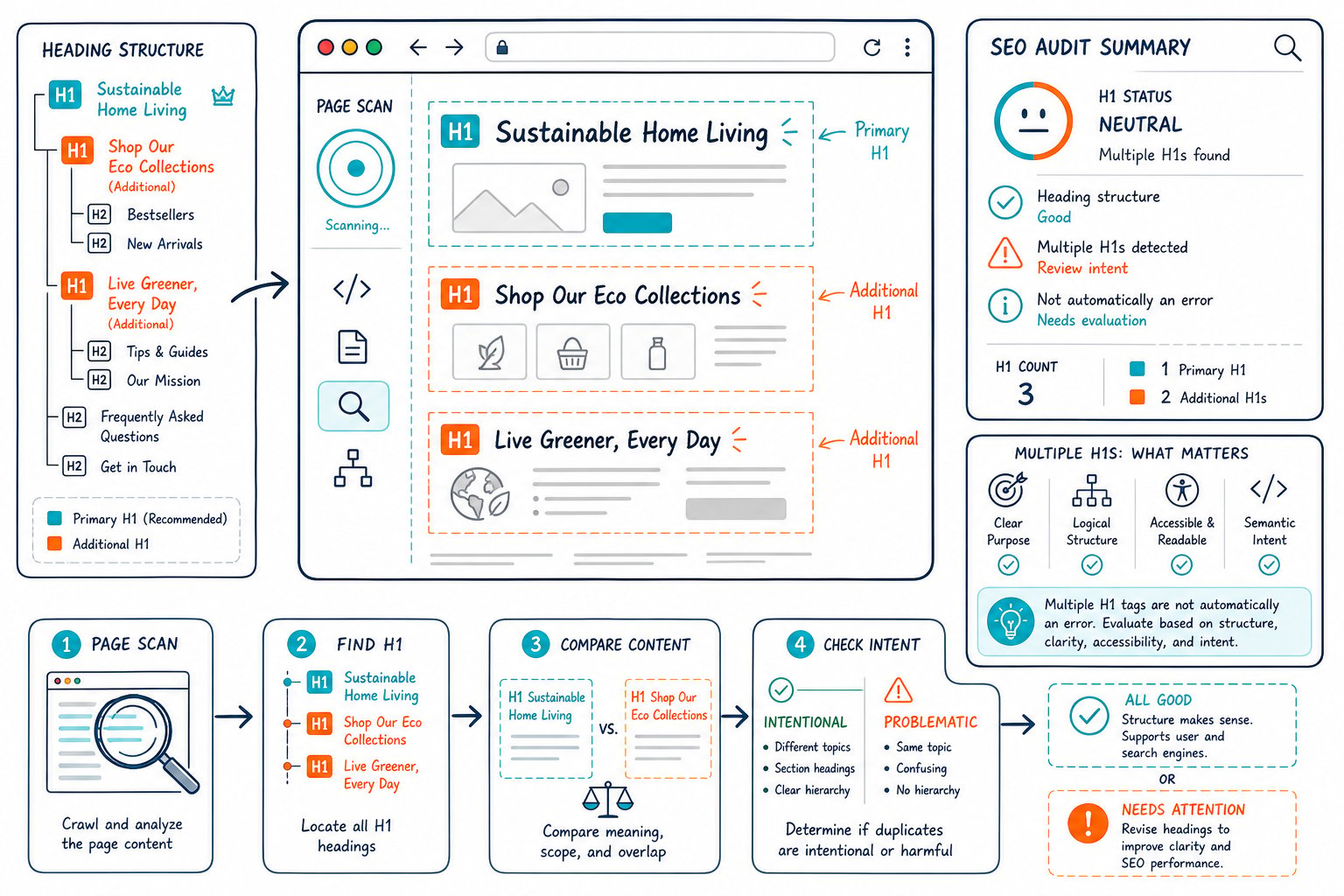
Multiple H1s rarely create a stand-alone ranking problem. They can still reveal weak content structure, duplicate page titles, accessibility gaps, and CMS template errors that deserve attention on important URLs.
How to Detect Every H1 on a Live Page
The most reliable way to find every H1 is to check the rendered DOM, then compare it with the original page source. This exposes headings added by JavaScript, React components, theme settings, page builders, and hidden template elements.
Check the Rendered DOM With Chrome DevTools
Open Chrome DevTools with F12 or Ctrl + Shift + I, select the Elements tab, then press Ctrl + F and search for <h1>. You will see each H1 tag in the live DOM, including headings injected after page load.
For a fast H1 count, use the Console:
document.querySelectorAll('h1')
To return the H1 text, use:
[...document.querySelectorAll('h1')].map(h => h.innerText.trim())
Check whether each result is visible, empty, duplicated, or part of a modal, cookie banner, or global site header.
Compare View Page Source With the Rendered Page
Use View Page Source to inspect the HTML returned by the server. Then compare it with what you see in DevTools.
If an H1 appears only in the rendered DOM, JavaScript created it. This is common on React sites and Shopify themes with dynamic sections. If it appears only in the page source, CSS or client-side code may have hidden or replaced it.
That distinction helps you send the right fix to your developer. A source-code issue belongs in the template or CMS output, while a rendered-page issue often sits in JavaScript, a page builder module, or theme logic.
Audit the Full Heading Outline, Not Only H1 Count
A heading audit should inspect H1, H2, H3, and lower heading levels together. A page with one H1 and twenty vague H2s still has weak content structure.
Check whether each heading describes the copy below it. You should see a clear hierarchy:
- One primary H1 for the page topic
- H2s for main sections
- H3s for supporting points within an H2 section
- No heading levels used only for visual styling
You can also use a content readability SEO check to spot long blocks of copy that need better heading breaks.
Use an SEO Audit Tool for Live, Logged-In, and Staging Pages
A live H1 checker saves time when you need to inspect page structure while browsing. Check Page SEO reads the active page in Chrome, so you can audit heading hierarchy on pages behind a login wall, inside a staging environment, or within a CMS preview.
This comes in handy when Screaming Frog or another crawler cannot access the final rendered page. Review the H1 count, H1 text, H2 coverage, duplicated headings, and structural gaps before you publish.
Find Template-Level Issues Across WordPress, Shopify, and Page Builders
Template-level H1 problems can repeat across dozens of URLs. WordPress themes often output the post title as an H1 while Divi or another page builder adds a second H1 inside a hero module. Shopify themes may add an H1 for the collection title and another inside a featured section.
Check several page types before changing theme settings:
- Blog posts
- Product pages
- Category or collection pages
- Landing pages
- Search and archive templates
When the same duplicate appears across a template, fix the template once and test the affected URLs. Keep the visual style in CSS, then assign the correct semantic HTML heading level.
When H1 Issues Need Fixing and How to Prioritize Them
Fix missing, empty, misleading, and duplicate primary H1s on important pages before spending time on harmless extra headings in isolated components. Your priority should follow search intent, page purpose, content quality, and accessibility impact.
Does Google Care About Multiple H1 Tags?
Google Search has treated multiple H1 headings as valid HTML for years, especially on pages using HTML5 sectioning elements. Even so, a single H1 per page remains a sensible working standard when the page has one clear subject.
A clean primary H1 helps align the page title, target keyword, main topic, and opening copy. Multiple H1s become a practical SEO issue when they describe competing topics, repeat the site title, or muddy the heading hierarchy.
Treat an extra H1 as a diagnostic signal. Review its text and location before changing it.
Why a Missing or Empty H1 Is Usually More Urgent
A missing H1 leaves users, screen readers, crawlers, and AI answer engines with less direct context about the page’s purpose. An empty H1 creates the same gap while adding markup that does no useful work.
Prioritize these issues first:
- Missing H1 on a key landing page, article, product page, or local service page.
- Empty H1 caused by a theme setting or failed dynamic content field.
- H1 that uses a generic phrase such as “Welcome” or “Services.”
- Duplicate H1s that target different search intents.
- Extra H1s inside reusable site components.
Your first H1 should give a clear answer to, “What is this page for?”
How to Choose the Primary Heading and Demote Extras
Choose the H1 that best matches the page’s primary search intent and visible page title. Keep it close to the top of the main content, with meaningful supporting copy below it.
Demote extra H1 headings to H2 or H3 when they introduce a section beneath the primary heading. For example, a product page might use the product name as the H1, then use H2s for features, pricing, specifications, reviews, and FAQs.
Do not use heading levels to control font size. Your CSS should handle presentation, while your semantic HTML describes document structure.
When HTML5 Sectioning Can Justify More Than One H1
HTML5 sectioning elements such as article, section, aside, and nav allow more than one H1 in the document model. You will see this on complex pages with separate articles, widgets, or embedded applications.
For search engine optimization and accessibility work, you should still assess the reader’s experience. A blog post with one subject needs one primary heading. An H1 inside a related-post widget or footer block adds little value and creates audit noise.
Use multiple H1s only when each section stands as a distinct, meaningful document section. Keep those sections clear in the rendered page and avoid hiding H1s inside template components.
How H1s, Title Tags, and Search Intent Should Align
Your title tag, page title, and primary H1 should point to the same intent while using natural wording. They do not need identical text.
For example, your meta title might lead with a click-focused phrase, while your H1 uses a clearer on-page explanation. Both should include the topic your audience expects and match the page content.
Check Search Console data for high-impression queries with a weak click-through rate. If your title and meta description promise one outcome while your H1 introduces another, visitors may leave quickly. Use the page’s existing content optimization workflow to align headings, copy, and search intent before rewriting more text.
Why Accessibility and AI Parsing Make Clean Structure Worthwhile
Screen readers use headings as navigation landmarks. When your heading levels follow a clear structure, users can scan the page and jump to the section they need.
Clean H1 headings also give crawlers, ChatGPT-style systems, AI Overviews, and other AI answer engines stronger page context. Write headings that name the topic directly, then support each heading with useful details, examples, and clear answers.
Avoid stuffing the target keyword into every heading. Repeated phrases weaken readability and reduce content quality signals. Check your keyword density after major rewrites, especially on long commercial pages.
How to Validate the Fix and Measure Page-Level Impact
After you update the markup, reload the page, clear any relevant caches, and repeat the DevTools H1 check. Confirm that the rendered DOM has the intended H1 count and that the visible heading text matches the page’s purpose.
Then validate these items:
- The canonical URL remains correct
- Your title and meta description still match the revised page
- The H1 is visible above the main body copy
- H2 and H3 levels remain logical
- Mobile layouts have no hidden duplicate headings
- Screen-reader navigation reflects the revised structure
Use Google Search Console to compare clicks, impressions, click-through rate, and average position before and after a meaningful change. Give the page enough time to collect comparable data, then review the query set and page-level trend.
For client work, include the before-and-after findings in SEO reports and keep the implementation notes with the audit.
Install the Check Page SEO Chrome extension to inspect live H1 tags, heading hierarchy, metadata, indexability, and page-level SEO issues while you view the page.