You can check meta tags on any web page in minutes by auditing the live page, inspecting its rendered DOM, and confirming the raw HTML sent by the server. This catches missing metadata, accidental noindex rules, broken canonical tags, and social-preview errors before they affect search results or sharing.
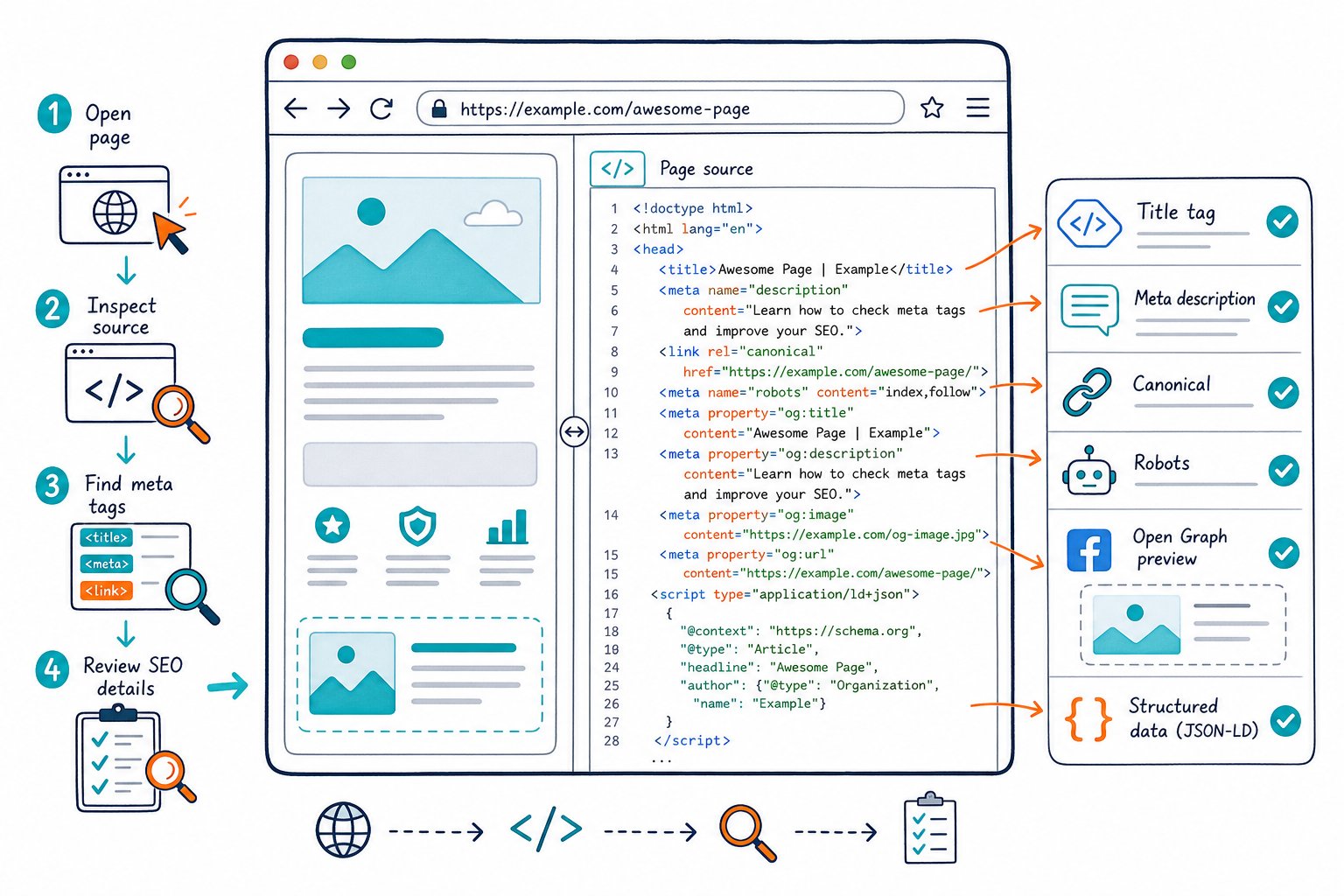
Metadata work is a core part of on-page SEO because it shapes how search engines interpret your page and how users see it in search results. Check the version that visitors and crawlers receive, then record every issue before changing a template, CMS setting, or individual page field.
Three Ways to Inspect a Page’s Metadata
For a quick, reliable audit, use a live checker, browser developer tools, and raw HTML. Each method exposes a different failure point, especially on JavaScript-heavy sites and Shopify themes.
Use a Meta Tag Checker for a Fast Live Audit
A meta tag checker gives you the quickest way to review title tags, meta descriptions, canonicals, robots directives, Open Graph fields, and Twitter card tags in one place.
Open the page you want to inspect, then run Check Page SEO from Chrome. Its live audit reads the active page, which comes in handy when reviewing a staging URL, a client CMS preview, a page behind login, or a competitor. You can inspect metadata alongside heading structure, links, images, schema, indexability, and page-level Tech, Index, and Content scores.
Use the report to flag:
- Missing or duplicated title and description fields
- A
meta name="robots"directive that blocks indexing - Canonical URLs pointing to another page
- Missing Open Graph tags
- Metadata that does not match the page’s main keyword or intent
For competitor research, use a competitor meta tags and headings check to compare page titles, descriptions, headings, and topic coverage side by side.
Inspect the Rendered DOM in Browser Developer Tools
Browser developer tools show the DOM after scripts have run. This view is useful when JavaScript, tag managers, apps, or client-side frameworks inject metadata after the initial page load.
In Chrome, right-click the page and select Inspect. Open the Elements panel, expand the <head> element, and search for title, description, canonical, robots, og:, or twitter:.
Check for duplicate tags carefully. A Shopify app, SEO plugin, theme snippet, and tag manager can all add metadata. Google may choose one title or description, while social platforms pull another field altogether.
Also watch for tags that change after the page loads. The rendered DOM can look perfect while the raw HTML still lacks important metadata, which is a headache for crawlers that do not execute the same scripts consistently.
View Raw HTML to Verify Server-Rendered Tags
Raw HTML confirms the tags delivered before browser rendering. Use it to find server-side metadata gaps that a rendered-DOM check can hide.
In Chrome, right-click and choose View Page Source, then search within the page for <title, meta name="description", rel="canonical", robots, og:title, and twitter:card. You can also add view-source: before the full URL in the address bar.
Compare raw HTML with the rendered DOM when you find inconsistent tags. If a tag only appears after JavaScript runs, move critical metadata into the server-rendered <head> where your platform supports it. This matters most on React, Next.js, Vue, and headless Shopify builds.
What to Validate After Extracting the Tags
After extracting the metadata, validate its relevance, uniqueness, indexability, social previews, and technical support signals. A complete tag set still needs to match the page’s purpose and the URL you want search engines to rank.
Are the Title Tag and Meta Description Unique and Click-Worthy?
Your title tag should state the page topic clearly, match the main search intent, and distinguish the URL from similar pages on your site. Duplicate title tags make it harder to signal which page best serves a query.
Treat character counts as a review cue, not a hard rule. Search engines display titles by pixel width, so a narrow 65-character title may fit while a wide 55-character title gets truncated. Put the main topic near the beginning, and skip repeating your brand name when space is tight.
Your meta description needs a clear benefit, an accurate page summary, and a reason to click. It does not directly set rankings, but strong copy can support click-through rate when Google uses it in the SERP. For a weak snippet, use an AI prompt to rewrite a meta description with your target keyword, page purpose, and character limit.
Do Robots and Canonical Directives Support Indexing?
Your robots meta tag and canonical tag should support the URL you intend to rank. Check for noindex, nofollow, noarchive, and other robots directives, including rules aimed at Googlebot or Bing.
A page set to noindex stays out of the index even if it appears in your sitemap and has strong internal links. Also inspect HTTP response headers for X-Robots-Tag, since that directive can change what the visible page markup seems to say.
Your canonical URL should be absolute, indexable, and self-referencing when the page is the preferred version. A canonical pointing to a category page, old URL, parameterized variation, or unrelated page can weaken signals and create duplicate content problems. Clean tracking parameters such as utm_, gclid, and fbclid before evaluating canonical consistency.
Will Open Graph and Twitter Cards Produce Accurate Social Previews?
Your Open Graph tags control the preview shown on Facebook, LinkedIn, Slack, Discord, and many messaging platforms. Check og:title, og:description, og:image, og:url, and og:type for accuracy.
The Open Graph image should load publicly, use the correct campaign or page image, and match the current topic. A stale og:url can send engagement signals and shares toward an outdated URL.
For X, confirm that your Twitter card tags include twitter:card, twitter:title, twitter:description, and twitter:image. Use summary_large_image when the image is built to carry the preview. Social platforms cache previews, so test again after publishing and give each platform time to refresh its cache.
Are Mobile, Language, and Structured Data Signals Present?
Your <meta charset> should define the correct character encoding, while the viewport meta tag should support mobile responsiveness. Check for a viewport field such as width=device-width, initial-scale=1; missing viewport markup creates an immediate mobile rendering risk.
For international pages, validate the page language and hreflang annotations. Each hreflang URL needs a valid return annotation, the correct language or regional target, and a canonical relationship that does not conflict.
Review structured data separately from metadata. Schema helps clarify entities, products, organizations, articles, and local businesses, while metadata controls document-level signals and previews. Check that schema details match visible content, sitemap URLs, and the canonical URL. Core Web Vitals sit outside meta tags, but slow scripts and excess DOM weight can still undermine the user experience after a search click.
How to Prioritize Fixes and Confirm Their Search Impact
Fix index-blocking mistakes first: accidental noindex, incorrect canonicals, broken redirects, and conflicting robots directives. Next, correct duplicate title tags and duplicate meta descriptions across templates or high-value URLs.
Then improve title and description relevance on pages with high impressions and weak CTR. Connect Google Search Console in Check Page SEO to review clicks, impressions, average position, CTR, and ranking queries beside the audited page. This helps you tell the difference between a metadata opportunity and a page that needs deeper keyword research or content work.
Record the deployment date, submit the updated canonical URL for indexing when appropriate, and compare equal date ranges in Search Console after Google has recrawled the page. Check the live page again after deployment to confirm the raw HTML, rendered DOM, canonical, robots directives, and social tags all match.
For ongoing page checks, Download the Check Page SEO Chrome extension and audit metadata while you view the live URL.